Using Points vs. Units
When dispatching a job, most businesses use "Units", which allows you to set the amount of time each job takes. Units works well for Service, but it can be a challenge for Sales, as you are leaving the decision making up to your Sales staff, who might not consider the complexity of the delivery.
Points are based on a ‘cubing system'—an item's dimensions and weight are taken into consideration when determining available truck space and installation time.
This guide explains how to activate Points and add them to the products you sell.
This guide does not explain how to calculate Point values. It is meant for customers that already use a Point calculating method and are looking for instructions on entering that data into EPASS.
Turning Points On
Points need to be activated for each Department.
-
Go to Tools > System Maintenance.
-
On the Tables tab, select Department, and then click Open.
-
Select a Department from the list, and then click Edit.
-
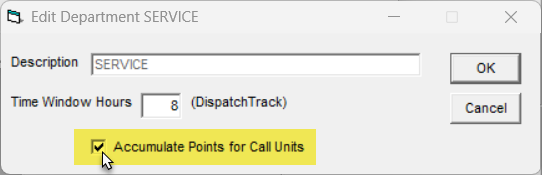
Click Accumulate Points for Call Units.
-
Click OK.
The Department will now use Points instead of Units.
Adding Points to Product Categories
The Product table is your primary control for Points. Points are effective when your Product categories each relate to the size and installation complexity of the product. Otherwise, Points would need to be maintained at the Model level, which overrides the Product table.
To Add Points
-
Go to Tools > System Maintenance.
-
On the Tables tab, select Product, and then click Open.
-
Select a product category from the list, and then click Edit.
-
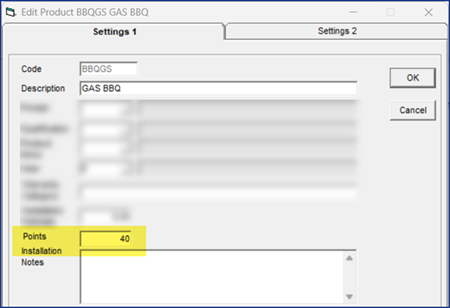
In the Points field, enter the product's points amount.
-
Click OK. Repeat steps 3 and 4 for additional product categories.
Adding Points to Labor and Miscellaneous Charges
To factor in the complexity of installation and delivery, Points can be defined in Labor Rates and Miscellaneous charges.
To Add Points to Labor Rates
-
Go to Tools > System Maintenance.
-
On the Tables tab, select Labor Rate, and the click Open.
-
Select a Labor Rate from the list, and then click Edit.
-
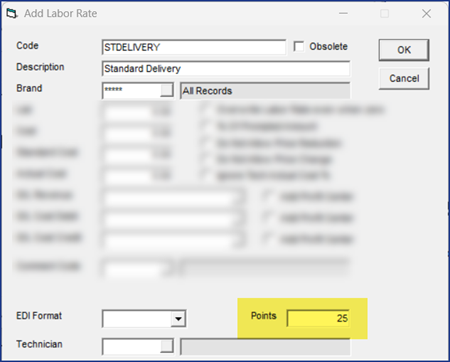
In the Points field, enter the rate's points amount.
-
Click OK. Repeat steps 3 and 4 for additional Labor Rates.
To Add Points to Miscellaneous Charges
-
Go to Tools > System Maintenance.
-
On the Tables tab, select Miscellaneous, and then click Open.
-
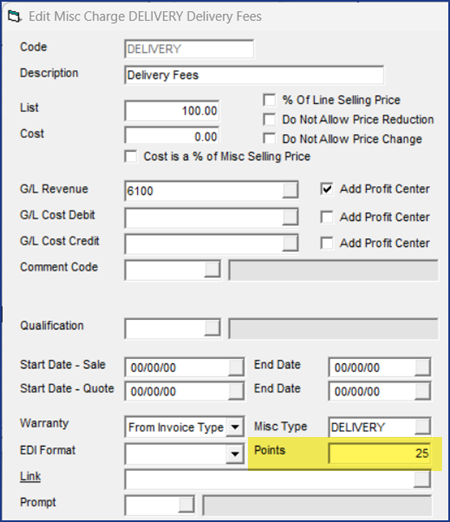
Select a Miscellaneous charge, and then click Edit.
-
In the Points field, enter the charge's points amount.
-
Click OK. Repeat steps 3 and 4 for additional Miscellaneous charges.
Adding Points to Models
Points added to a model override the point values in the Product Category. This may be useful for specific models that have a different point value than the Product Category they belong to.
To Add Points to a Model
-
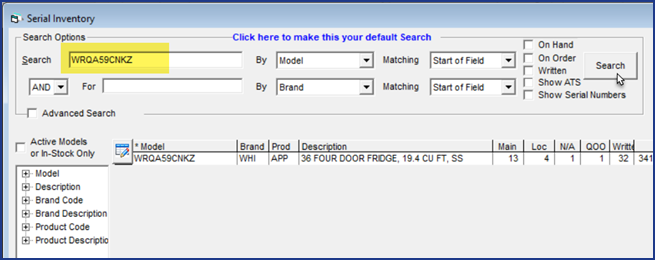
Go to Serial Inventory > Maintenance, and search for a model.
-
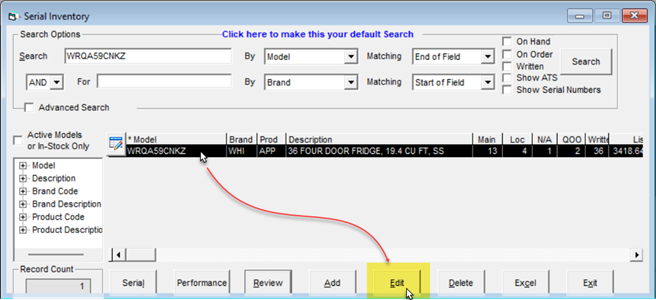
Select the model, and then click Edit.
-
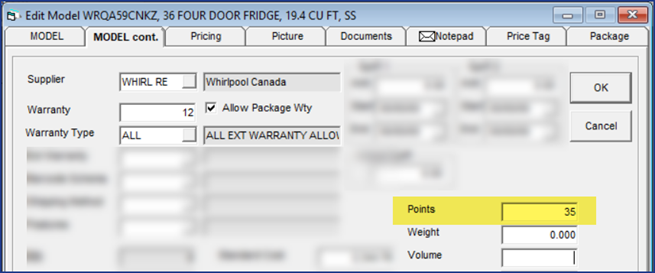
Click the Model cont. tab.
-
In the Points field, enter the model's points amount.
-
Click OK. Repeat steps 1–4 for additional models.
Adjusting Call Counts
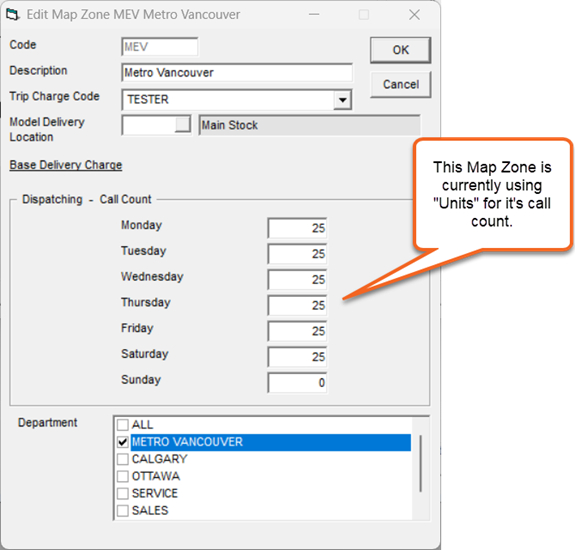
If you are switching from Units to Points, you'll have to adjust your call count amounts, otherwise, you may not be able to schedule deliveries.
To Adjust Your Call Counts
-
Go to Tools > System Maintenance.
-
On the Tables tab, select Map Zone, and then click Open.
-
Select a Map Zone from the list, and then click Edit.
-
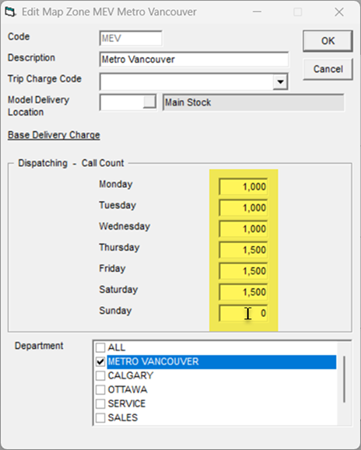
Enter the maximum amount of Points for each day.
-
Click OK.
-
Repeat steps 3–5 for additional Map Zones.
In the screenshot above, it's assumed that each truck can handle 500 points per day, and there are two trucks available the first three days, and 3 trucks available on the following three days.
Viewing Accumulated Points on the Invoice
After adding models, labor, or misc lines to the invoice, you can view the accumulated Points total on the invoice's Dispatching tab in the Units field.
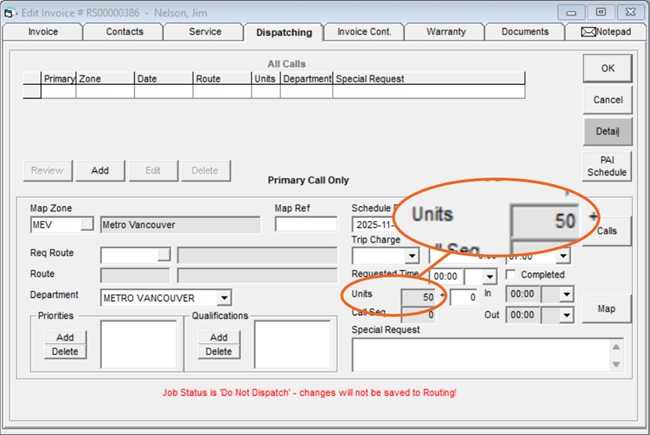
You can manually add to the accumulated Points total by entering a value in the '+' field to the right of the Units field.
