Adding a Pre-Authorization Payment Type
You can create pre-authorization payment types to verify the authenticity of a customer's credit card or to create a temporary hold for a specific amount. Amounts that are pre-authorized can later be captured and converted to a credit card payment.
Steps
-
In EPASS, go to Tools > System Maintenance. In the Tables tab, click Payment Type, and then click Open.

-
In the Payment Type window, click Add.

-
Fill in the required fields:

Code Enter a unique identifier code for the payment type. This code is used in multiple areas of EPASS to identify the payment type, including on reports. Description Enter a description of this payment type. G/L Account Select the G/L account to link this payment type to. -
In the Payment Processing area, select EPASS PAY - Pre-Auth from the Type dropdown.

-
If you want to be able to pre-authorize for a specific amount, and later be able to capture and convert that amount to a credit card payment, do the following:
-
Select Allow Pre-Auth Amount & Capture.
-
Select the credit card payment type that you want to use to capture the authorized amount from the Capture/Sale Payment Type dropdown.

-
-
Click OK.
Notes-
When the pre-authorization amount is "captured", EPASS will use the credit card payment type selected to process the payment. If successful, this payment type appears on the invoice and replaces the pre-authorization line. See Pre-Authorizing a Credit Card for more information.
-
If you select a credit card payment type that applies an upcharge, the upcharge is automatically applied on the captured amount.
-
If you don't select the Allow Pre-Auth Amount & Capture checkbox, the pre-authorization will only validate the card. You won't be able to authorize or capture a payment amount. Instead, if the pre-authorization is successful and the card is valid, EPASS adds a $0.00 payment line to the Invoice Details. See Pre-Authorizing a Credit Card for more information.
-
You can only select a credit card payment type in Capture/Sale Payment Type. Your other payment types will not appear in the dropdown list.
-
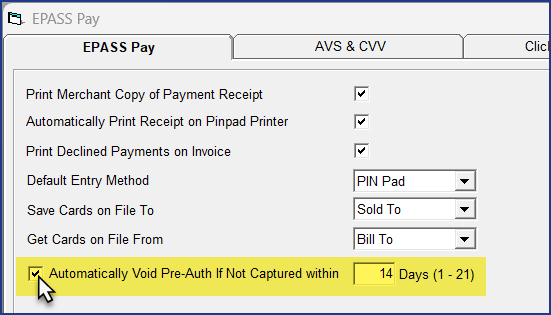
You can have EPASS automatically void uncaptured pre-authorizations after a specific amount of time has passed. Go to Tools > System Maintenance > Variables > EPASS Pay. On the EPASS Pay tab, select Automatically Void Pre-Auth If Not Captured and enter the number of days. If this setting is not enabled, you must either manually void any uncaptured pre-authorizations or allow them to expire according to the card issuer’s policy.
-
See Also
- Pre-Authorizing a Credit Card
- Adding a Credit Card Payment Type
- Adding a Debit Card Payment Type
- Taking a Payment
May 19, 2026