Managing Dashboard Security
Managing dashboard security in EPASS ensures that only authorized Users or Groups can create, modify, or access custom dashboards and widget groups. Through the User Security settings, administrators can grant specific permissions such as creating dashboards, assigning them to others, or editing and deleting dashboards created by different Users. In addition to managing editing rights, you can also control which Widget groups a User can access when building dashboards, helping maintain consistency and data management.
Any changes that you make to EPASS Security Options require restarting EPASS for the changes to take effect.
Controlling Who Can Add and Edit Custom Dashboards
This procedure explains how to assign security options for creating, editing, assigning, and deleting custom dashboards in EPASS. These options give you control over access to each dashboard-related function, ensuring that dashboard creation and maintenance remain organized and secure.
Steps
-
Go to Tools > System Maintenance.
-
On the Tables tab, select User Security, and then click Open.

-
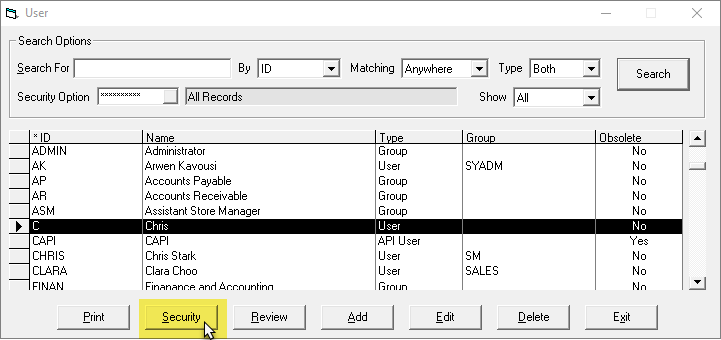
Select a User or Group, and then click Security.
-
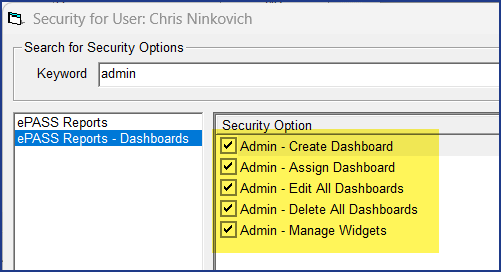
On the left side of the window, click EPASS Reports - Dashboards.
-
Select from the following security options:
- Admin - Create Dashboard: Grants the User the ability to create a new custom dashboard.
- Admin - Assign Dashboard: Grants the User the ability to assign a dashboard to EPASS Users or Groups. See Assigning Users or Groups for more information.
- Admin - Edit All Dashboards: Grants the User the ability to edit dashboards created by other EPASS Users. This also includes the ability to save Widget filters.
- Admin - Delete All Dashboards: Grants the User the ability to delete dashboards created by other EPASS Users.
- Admin - Manage Widgets: With this option, new Widgets (if available) are automatically downloaded when the User logs into EPASS Reports. It also grants the User the ability to enable or disable Widgets on the Manage Widgets screen. Widgets that are disabled are hidden from the Dashboard Editor menu and can't be used. (See Organizing Your Widgets for more information.)
-
Click OK, and then Exit the User Security window.
Controlling Widget Group Access
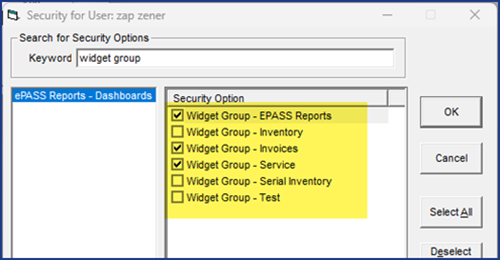
You can control access to the Widget library by deciding which Widget groups Users can access when creating custom dashboards (see Organizing Your Widgets for more information on Widget groups).
All current Widget Groups are listed in the EPASS Reports - Dashboard security option setting. Select each one that you want the User to have access to in the Dashboard Editor.
Controlling Custom Dashboard Access
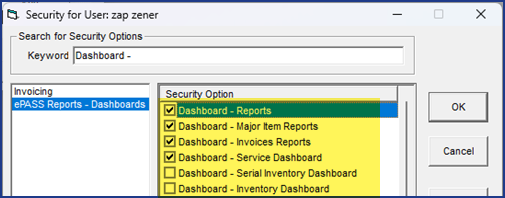
In addition to controlling who can create or edit custom dashboards, you can also control which custom dashboards Users can view in EPASS Reports.
All existing custom dashboards are listed in the EPASS Reports - Dashboard security option section. Select each one that you want the User to have access to in EPASS Reports.
Controlling access to custom dashboards can also be accomplished within EPASS Reports. See Assigning Users or Groups to a Dashboard for more information.