Widgets
Creating a dashboard involves adding and positioning multiple "widgets." Widgets are modular components that display specific reporting data in a visual format, such as charts, tables, gauges, or text summaries. By adding and arranging widgets you can create unique EPASS Reporting dashboards for each of your different teams and staff members.
EPASS Reports has a large library of widgets to choose from, with additional widgets added regularly.
Widget Overview
Each Widget has been designed to display a specific set of reporting data. The range and scope of this data is controlled by the Widget's filter options. The image below highlights the additional Widget control features:
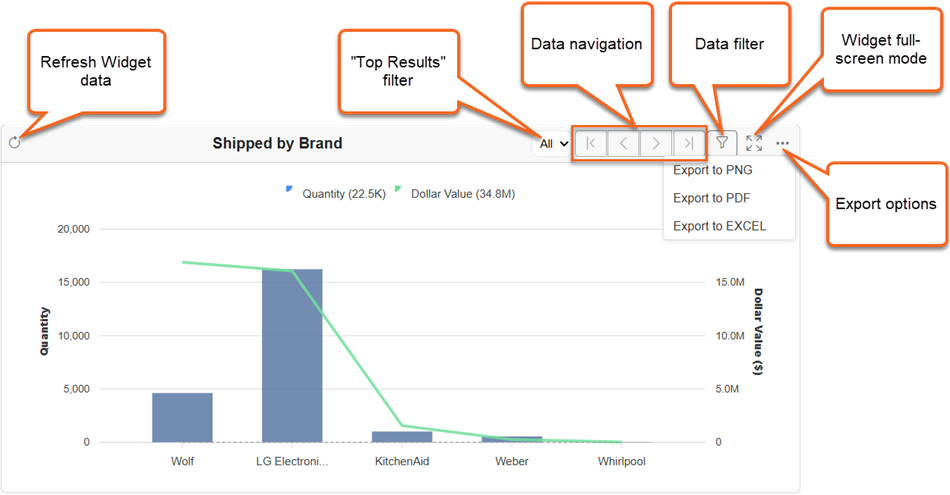
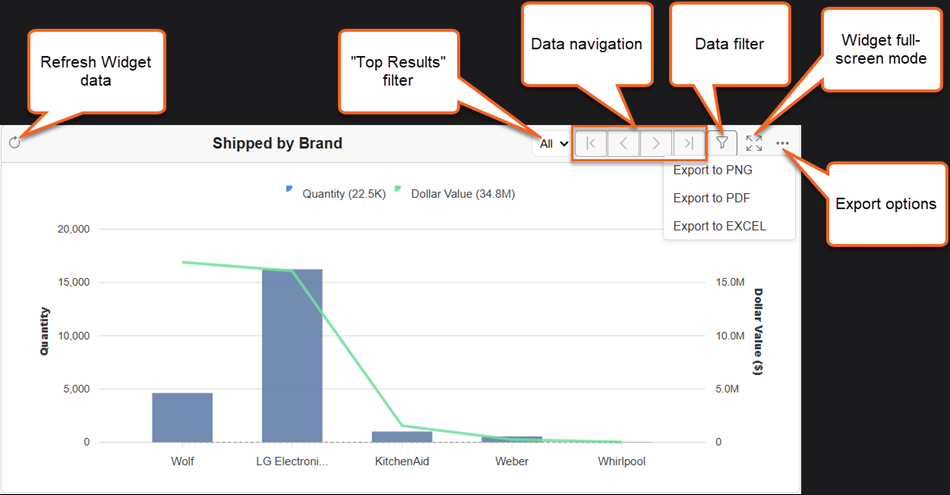
Not all Widgets include every control shown here.
Organizing Your Widgets
You can organize how your widgets appear in the Widget menu of the dashboard editor by grouping or disabling them. This is done on the Manage Widgets screen.
-
Click Admin.

-
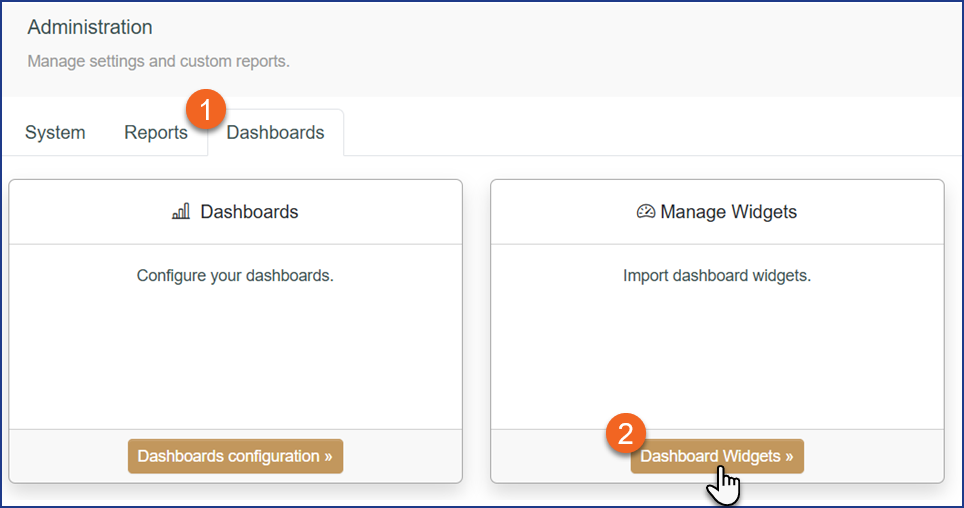
Click the Dashboards tab, and then click Dashboard Widgets.
-
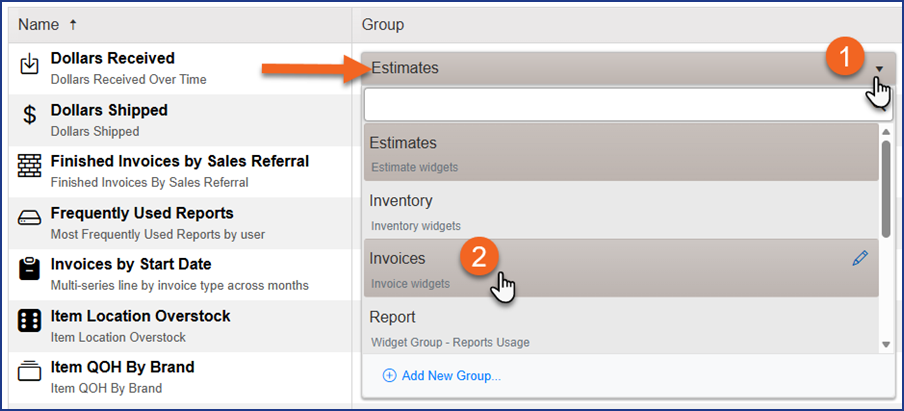
To change the group that a widget belongs to, click the Group dropdown and select a new group name from the list.
-
To rename a group, click the Pencil icon.

-
To create a new group, click Add New Group.

-
To hide a widget from the Widget menu, turn off the Enabled switch.
 Note
NoteDisabling a widget only hides it from the Dashboard edit screen. It doesn't hide it from existing Dashboards.