Message System Variables
Message System Variables in EPASS allows you to configure the internal messages and pop-up reminders that are delivered to EPASS Users or Groups through the EPASS Messaging System. It includes settings to enable the messaging system, control how often it checks for new messages, and determine whether reminders should appear on top of other programs. Additionally, it provides detailed control over various message-triggering events—such as invoice creation, order cancellations, or service requests—allowing you to customize which events generate messages or reminders, and who receives them. EPASS messages and reminders also give recipients the options to reply to the sender or other EPASS Users.
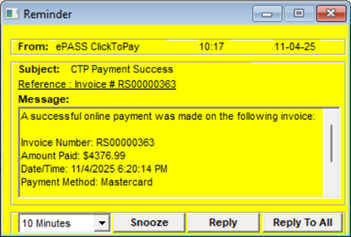
EPASS Users need administrator-level security access to view EPASS System Variables.
Open Messaging System Variables
-
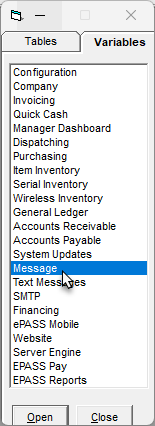
Go to Tools > System Maintenance. Click the Variables tab.
-
Select Message, and then click Open.
General Tab
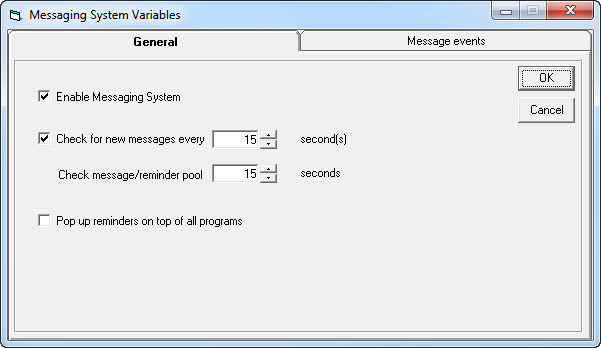
- On this tab, you can adjust the general settings, such as enabling the messaging system, and frequency of checking for new messages.
- "Pop up reminders on top of all programs" will tell EPASS to have new messages or reminders pop up on top of whatever program you are currently in.
Message Events Tab
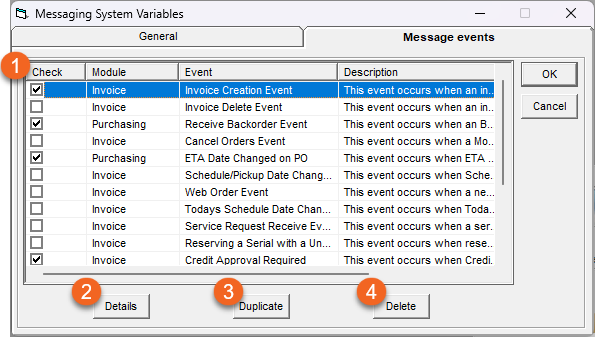
Here you can select which message events you would like to enable or disable, duplicate, or delete.
Click here to view a list of all message events.
| Event | Description |
|---|---|
| Invoice Creation | This event occurs when an invoice is created. |
| Invoice Delete | This event occurs when an invoice is deleted. |
| Receive Backorder | This event occurs when a backordered model is received. |
| Cancel Orders | This event occurs when a Model Detail Line that has a PO # is deleted from an invoice. |
| ETA Date Changed on PO | This event occurs when an ETA date is changed on a PO. |
| Schedule Date/Pickup Date Changed | This event occurs when an invoice's Schedule or Pickup date is changed. |
| Web Order | This event occurs when a new web order is created. |
| Todays Schedule Date Changed on Invoice | This event occurs when the Scheduled Date is changed on an invoice that was scheduled for the current day. |
| Service Request Receive | This event occurs when a service request is received. |
| Reserving a Serial with a Unique Selling Price | This event occurs when a serial with a unique selling price is reserved. |
| Credit Approval Required | This event occurs when credit approval for an invoice is required. |
| Successful CTP Payment | This event occurs when a Click to Pay payment has been successful. |
| Declined CTP Payment | This event occurs when a Click to Pay payment is declined or unsuccessful. |
| ACH Return Event | This event occurs when an ACH payment is returned. |
| Email Notification Failure (Click to Pay) | This event occurs when EPASS fails to send the customer an email notification for a Click to Pay transaction. |
| SMS Notification Failure Event (Click to Pay) | This event occurs when EPASS fails to send the customer an SMS notification for a Click to Pay transaction. |
| 1 | Select or clear the check box to enable or disable a Message Event. |
| 2 | Select a Message Event and then click Details to open the Message Event Details Edit window. Here you can select which EPASS Users or Groups receive the message, customize the message subject line and body, and select how the recipients should receive the message: in their inbox, or as a pop-up reminder.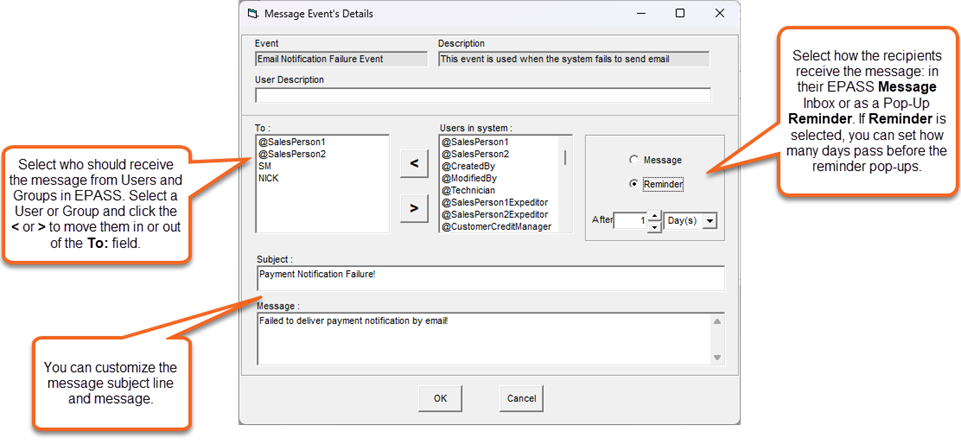 |
| 3 | Select a Message Event and then click Duplicate to create a copy. This is useful if you want to send a message with an alternate subject or message body to a group of EPASS Users. |
| 4 | Select a Message Event and click Delete to remove it. Note, that you can only delete Message Events that you duplicated. EPASS does not allow you to delete the original events. Deletion is permanent and can not be undone. |
-
To use fields such as @Salesperson or @Expeditor, you must first add those fields in User Security. To do so, go to Tools > System Maintenance > Tables > User Security and edit a user or group.
-
What is an Expeditor? An expeditor is an alternate recipient for message events. You assign an expeditor to a user so that messages intended for that user are also sent to the expeditor. For example, if salespeople Bob, Doug, and Clara all have Fred set as their expeditor, any message event configured to include
@SalesPerson1Expeditorwill also send the message to Frank. This creates a one-to-many relationship, allowing a single message event to reach both the primary user and their designated expeditor.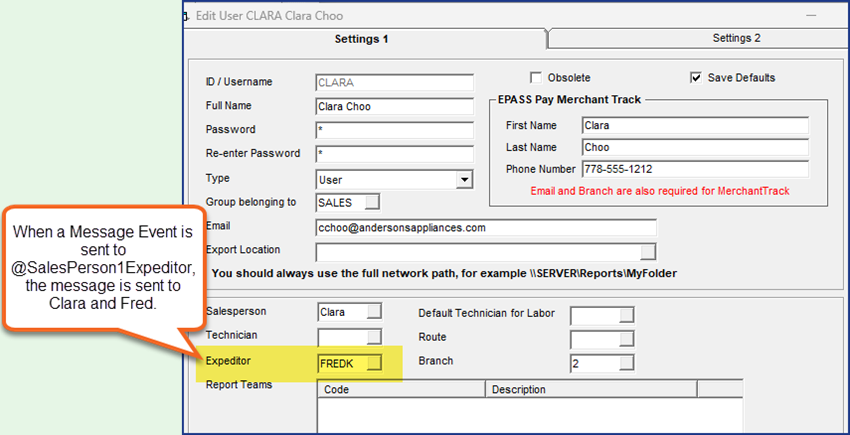
See Also
- Configure Click to Pay Messaging (Configuring Click to Pay)
- Configure Text or Email Failure Messages (Click to Pay)
May 21, 2026