Linking an Installation to a Model on a Different Invoice
The Link to Model feature allows you to associate specific models with installation codes during invoicing, even if those models belong to different invoices. This improves flexibility by giving your sales and operations teams better control and visibility over model management. Any linked models are automatically recorded in Customer History upon invoice posting, ensuring accurate tracking for future reference. Using this feature can help streamline installations, improve traceability, and maintain comprehensive historical records.
Before Starting
Link to Model and Write to History Settings
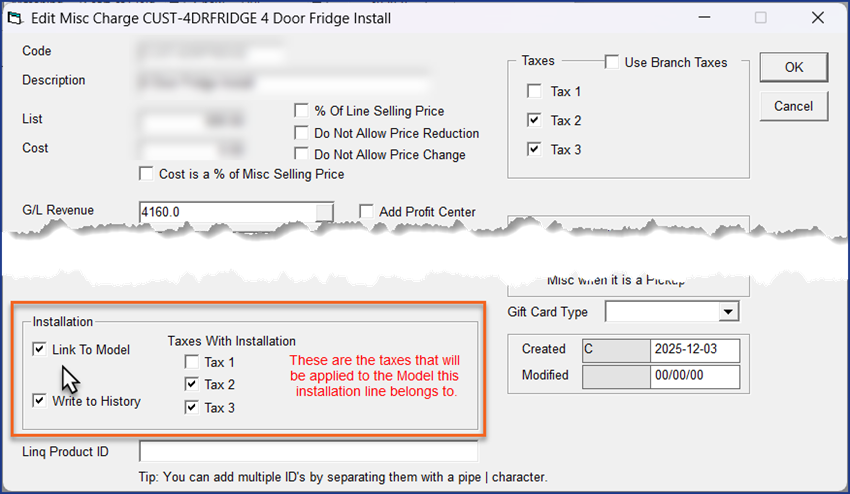
Verify that your installation Misc code has the Link to Model and Write to History checkboxes selected.

-
When the the Write to History option is enabled, linking a model to an installation is recorded in the customer's history in EPASS. This ensures that a comprehensive record of model usage and installation is kept, facilitating future reference and operational analysis.
-
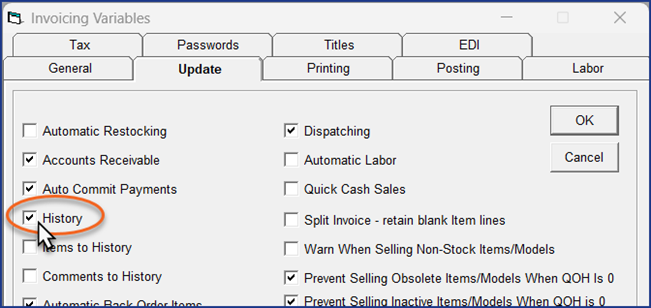
Also verify that you have the History option selected in Invoice Variables > Update tab. Go to Tools > System Maintenance > Variables tab > Invoicing > Update tab.
Steps
-
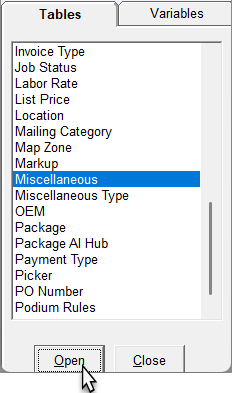
Go to Tools > System Maintenance. On the Tables tab, click Miscellaneous, and then click Open.
-
Select the installation Misc code, and then click Edit.
-
Near the bottom of the Edit Misc Charge window, select Link to Model and Write to History.
-
If necessary, select the the appropriate Tax checkboxes.
-
Click OK to close the Edit Misc Charge window.
Linking an Installation Invoice to a Model on a Different Invoice
-
Create the installation invoice and add the installation Misc code.
-
Click Yes at the prompt.
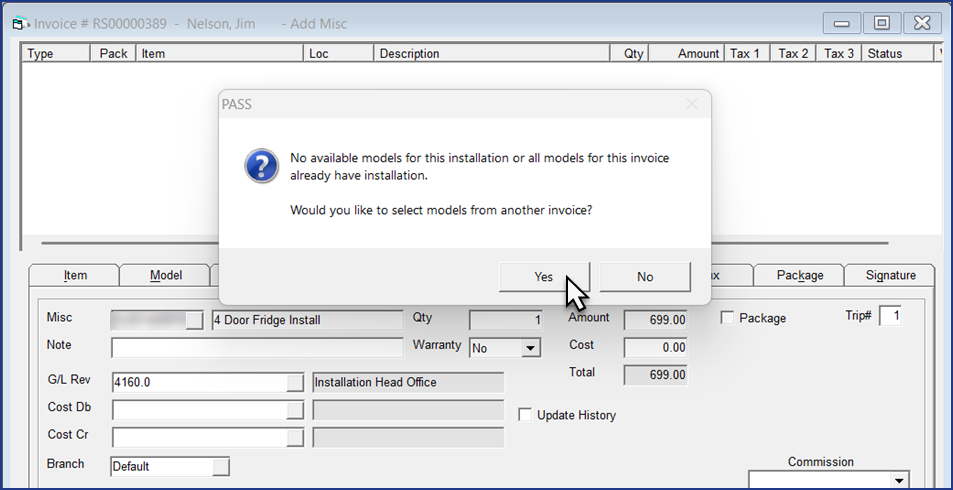
-
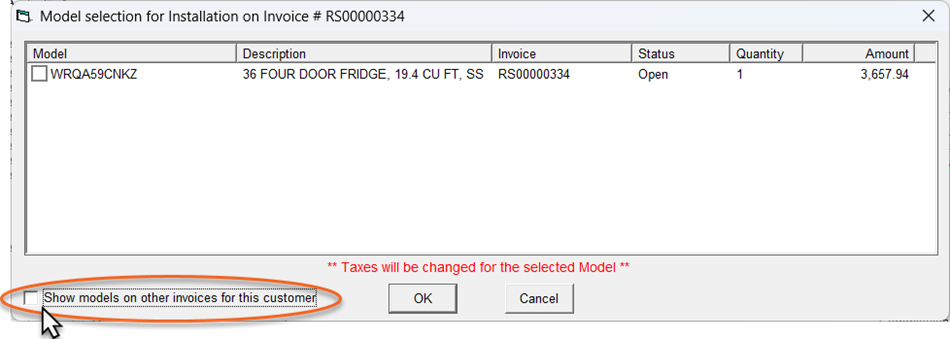
Select the model from the list of invoices, and then click OK.
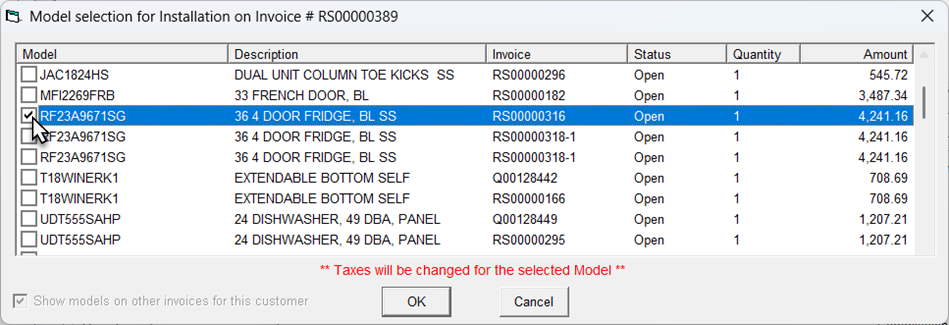
The Misc code is added and linked to the model on the other invoice.

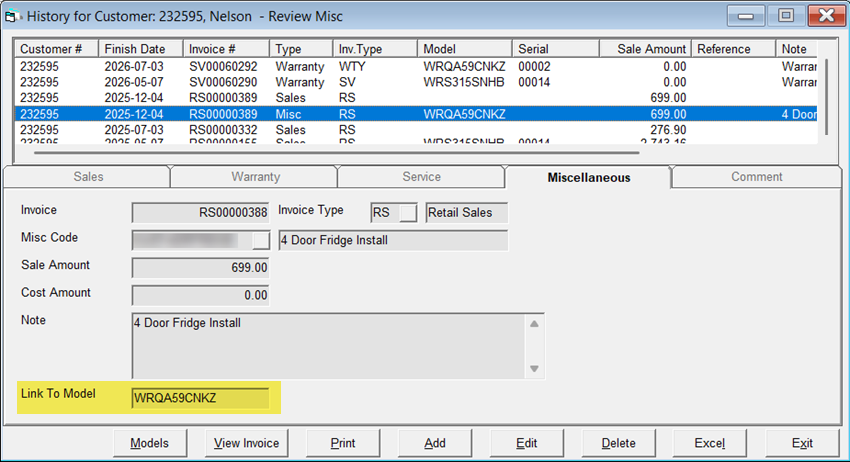
Customer History
If you selected Update History when you added the Misc code to the invoice, the Misc code is added to the customer's history once you post the invoice. (Go to the customer record, and on the Details tab, click History.)
If models are already on the invoice, but you want to link the installation to a model on a different invoice, add the Misc code, and then select Show models on other invoices for this customer.