Setting Minimum Deposits by Job Status
This help topic explains how to configure and use minimum deposit requirements based on Job Status in EPASS, rather than the Minimum Deposit Percentage set in the Invoice Type.
Overview
You can define different minimum deposit percentages for each Job Status (for example, Estimated, Scheduled, Firm). This allows you to collect payments progressively as a job moves through its lifecycle.
Key benefits:
- Collect deposits in stages as work progresses.
- Customize deposit requirements for each Job Status.
- Override Invoice Type deposit rules when needed.
- Improve cash flow and enforce payment policies.
When to Use this Feature
Use Job Status-based deposits when:
- You want to collect payments gradually (for example, 40% upfront, 100% before scheduling).
- Your business workflow includes multiple job stages.
- You need more flexibility than a single invoice-type deposit rule.
Example
| Job Status | Deposit |
|---|---|
| Unconfirmed | 40% |
| Scheduled | 50% |
| Firm | 100% |
How it Works
- Each Job Status can have its own minimum deposit percentage.
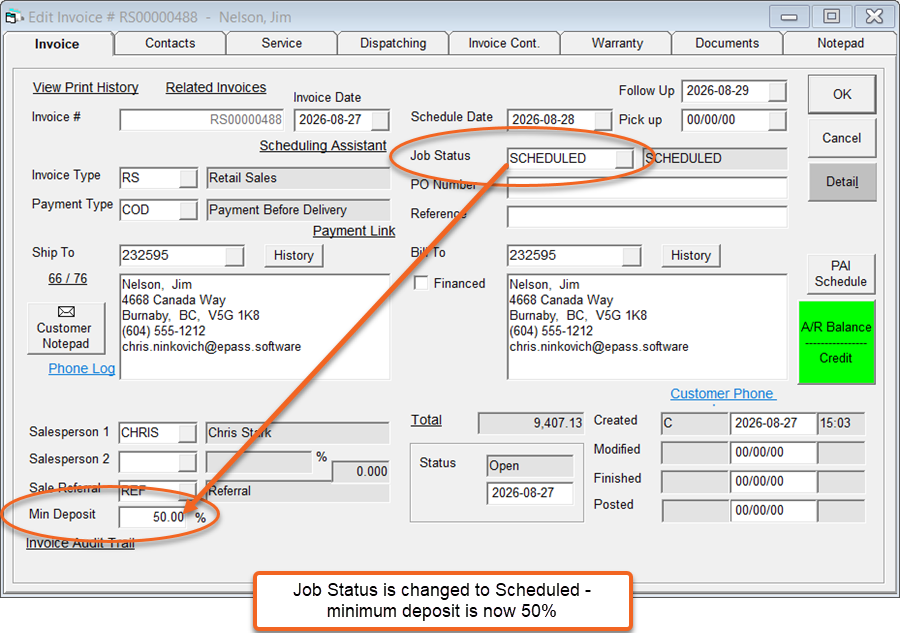
- As you change the Job Status, EPASS recalculates the required deposit.
- If the required deposit is not met, EPASS warns the user and stops them from reserving and shipping serials or finishing the invoice.
- EPASS validates the deposit only when changing the Job Status. You can add, edit, or remove invoice lines and save your changes without being blocked by the minimum deposit requirement.
- Invoices must contain at least one product line and one payment line before you can change the Job Status. This ensures that deposit validation rules are enforced only when the Job Status is changed.
- If a Job Status doesn't have it's own minimum deposit percentage, EPASS automatically falls back to the Invoice Type's minimum deposit percentage.
Changing the Job Status is dependent on the EPASS User's security levels. See Job Status Security Levels for more information.
Set Up
Configure Each Job Status
-
Go to Tools > System Maintenance. On the Tables tab, click Job Status, and then click Open.
-
Select a Job Status, and then click Edit.
-
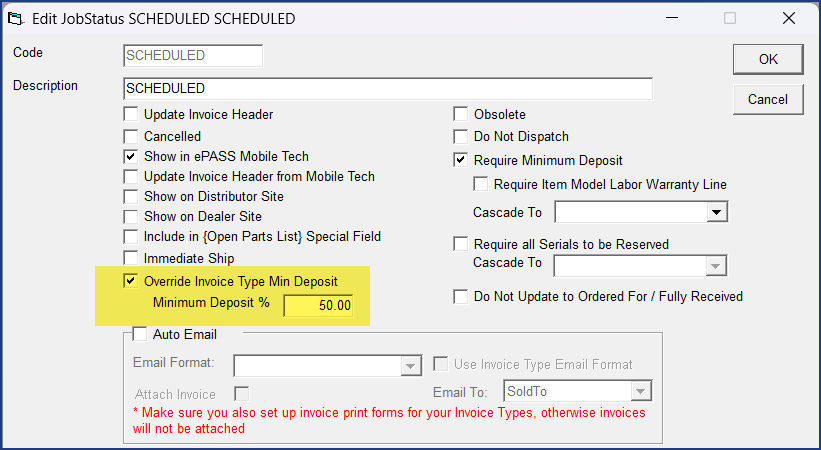
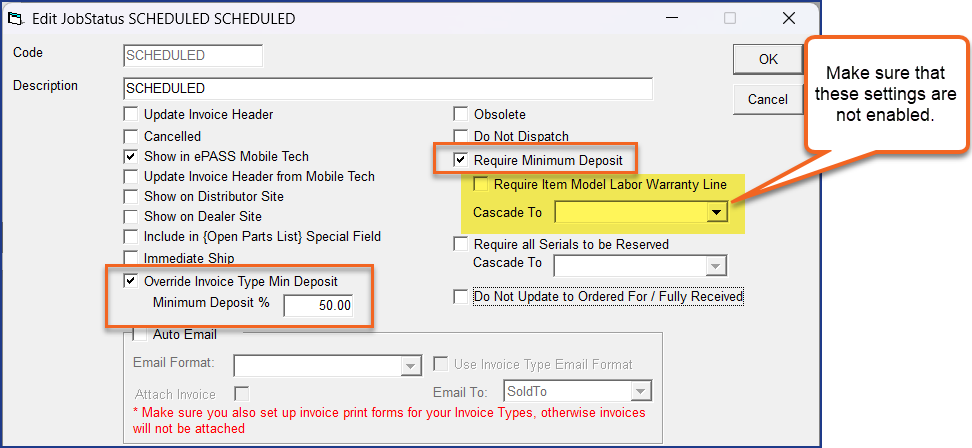
Select Override Invoice Type Min Deposit and enter the minimum deposit percentage for this Job Status.
-
Make sure that Require Minimum Deposit is selected.
cautionDo not select Require Item Model Labor Warranty Line. If this checkbox is selected, the feature will not function correctly.
-
Click OK.
-
Repeat steps 2–4 for additional Job Status codes.
- Only enable the override if you want the Job Status minimum deposit to replace the Invoice Type's minimum deposit.
- If a Job Status doesn't have the override enabled, or the Job Status minimum deposit is set to 0%, EPASS uses the Invoice Type's minimum deposit percentage.
Workflow Example
-
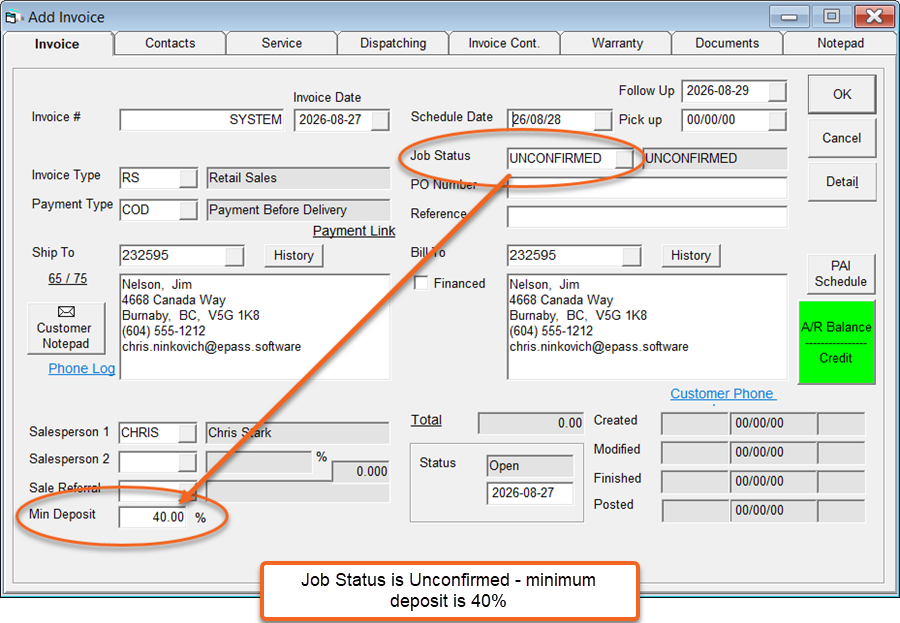
An invoice is created.
-
The initial Job Status is selected (Unconfirmed- 40% deposit).
-
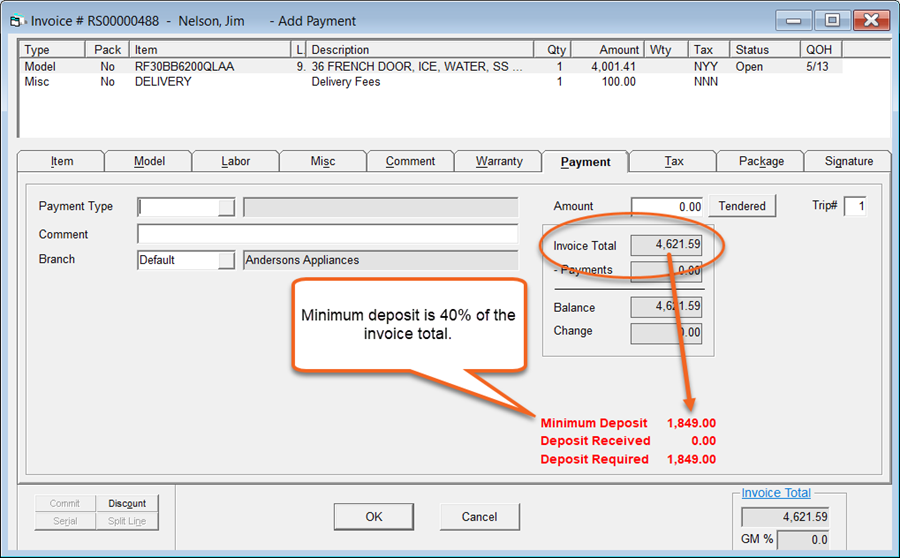
Product is added to the invoice.
-
EPASS calculates the minimum deposit based on the percentage set in the current Job Status.
-
Payment is collected for the deposit amount.
-
More product is added to the invoice. Because the Job Status hasn't changed, additional deposit funds are not required.
NoteYou'll still receive a message from EPASS that the minimum deposit is required. This warning message can be ignored and closed by clicking OK.
-
Job Status is changed to the next step in the sales process (Scheduled- 50%).
-
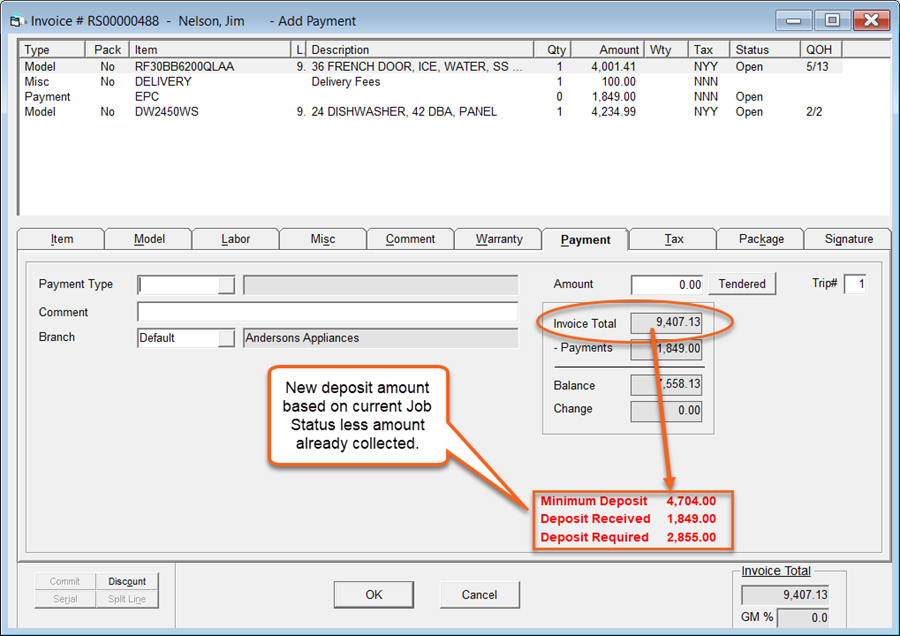
EPASS calculates the next deposit based on the current owing and the percentage set in the current Job Status.
-
Payment for next deposit is collected and the Job Status is set to the final Job Status (FIRM - 100%).
-
The invoice is eventually paid in full, and product is shipped to the customer.
Troubleshooting
Can't Change the Job Status
Possible Cause:
- The EPASS User does not have the required Job Status security level to change to or from a Job Status.
Solution:
- Verify that the EPASS User has the required security levels set in their Security settings. See Job Status Security Levels for more information.
Deposit is not Updating when the Job Status is Changed
Possible Causes:
- The override is not enabled on the Job Status.
- The minimum deposit percentage is blank or set to 0%.
Solution:
- Verify the Job Status configuration.
Wrong Deposit Amount
Possible Cause:
- The override is not enabled on the Job Status and the Invoice Type minimum deposit is being applied.
Solution:
-
Confirm that the override setting is configured on each Job Status.