OE-19 MTD Invoice Cost Analysis
The OE-19 MTD Invoice Cost Analysis report helps you analyze sales and invoice performance by Branch and Invoice Type. You can run the report in either Summary or Detail mode, making it useful for both high-level sales analysis and invoice-level review. It is commonly used to compare how divisions, branches, or salespeople are performing.
When to Use This Report
Use this report when you need to:
- Review month-to-date sales performance.
- Compare results across branches or invoice types.
- Analyze margins using different cost methods.
- Review invoice activity by salesperson.
- Export sales analysis data to Excel for further reporting.
Report Parameters
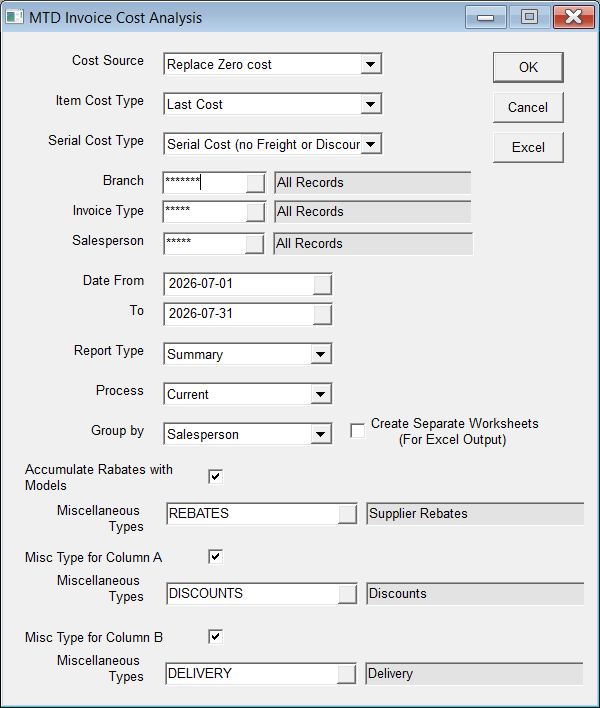
Cost Source

Determines how the report calculates costs and margins.
- Use Invoice Cost: Uses the actual costs stored on each invoice line item.
- Replace Zero Cost: Replaces only zero-cost invoices with the selected item and serial cost types.
- Replace All Costs: Replaces all invoice costs with the selected item and serial cost types.
Item Cost Type

Selects the item cost used for reporting and margin calculations.
Available options:
- Last Cost
- Average Cost
Access to these options may be controlled by security settings.
Serial Cost Type

Selects the serial cost used for reporting and margin calculations.
Available options:
- Last Cost
- Average Cost
- Original Cost
- Standard Cost
- Invoice Landed Cost
- Invoice Standard Cost
- Invoice Replacement Cost
- Serial Cost (No Freight or Discounts): This does not include freight or discounts, but does include depreciation and adjustments.
Filtering Options
Branch
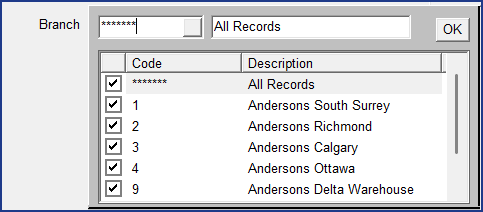
Select one or more branches to include in the report. Security settings may restrict available branches.
Invoice Type
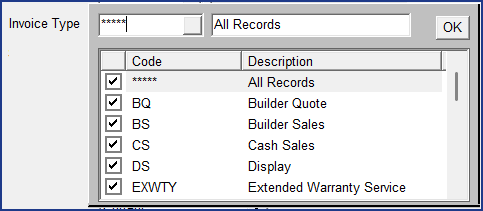
Select one or more invoice types to include.
Salesperson

Select one or more salespeople to include. Security settings may restrict available selections.
Date Range

The report uses the Invoice Finish Date when filtering records.
Report Type

Choose one of the following:
- Summary: Provides a high-level sales analysis and aggregated results. This is the most common option for management review and trend analysis.
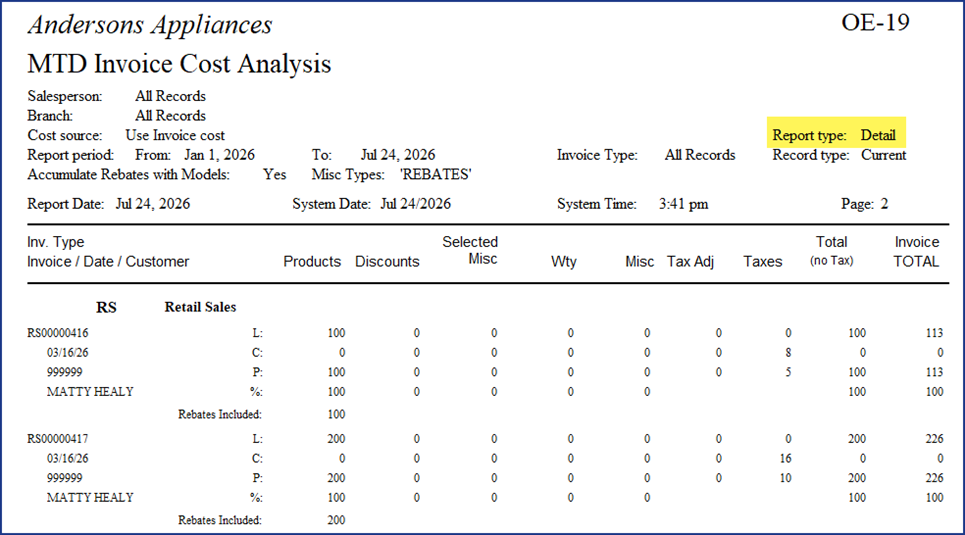
- Detail: Shows individual invoices and item-level transaction information for deeper investigation.
Process

Choose which invoice records to report on:
- Current invoices
- Archived invoices
Group By

Organize report results using one of these groupings:
- Branch / Invoice Type
- Invoice Type
- Invoice Type / Salesperson
- Salesperson
Accumulate Rebates with Models

When enabled, you can select the miscellaneous type code that are associated with rebates, and including them with model sales, giving you a more accurate sales figure.
Column A and Column B

The Column A and Column B sections allow you to add additional miscellaneous types codes to the report. In the report, Column A is labelled Discounts and Column B is labeled Selected Misc.
Create Separate Worksheets (Excel Output)

When exporting to Excel, you can automatically create separate worksheets based on the selected Group By option. For example, grouping by Salesperson creates an individual worksheet for each salesperson.
How to Run the Report
-
Go to Invoicing > Reports...2 > OE-19 MTD Invoice Cost Analysis.
-
Select a Cost Source.
-
Choose the desired Item Cost Type and Serial Cost Type.
-
Select the appropriate Branch, Invoice Type, and Salesperson filters.
-
Enter the desired Date From and Date To values.
-
Choose a Report Type (Summary or Detail).
-
Select Current or Archived invoices.
-
Choose how to Group By the results.
-
Optionally enable:
- Create Separate Worksheets
- Accumulate Rebates with Models
-
Click OK to generate the report. Click Excel if you want to export the results.
Understanding the Report
Summary Report
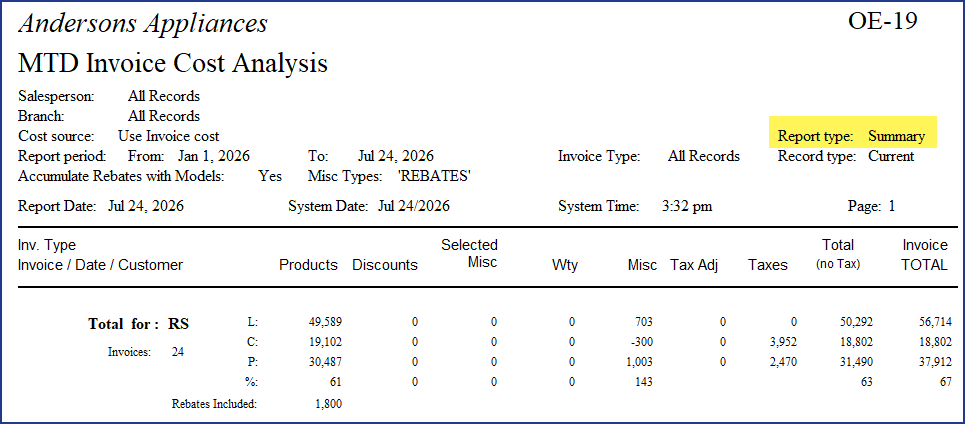
The Summary version consolidates sales information into grouped totals, making it easier to review performance by branch, invoice type, or salesperson. The output includes cost, sales, taxes, invoice totals, and related financial metrics.
Detail Report
The Detail version displays individual invoices and transactions, allowing you to investigate specific sales activity and supporting records.
- Use Summary mode for management reporting and trend analysis.
- Use Detail mode when researching specific invoices or transaction discrepancies.
- Grouping by Salesperson is useful when measuring individual sales performance.
- Exporting to Excel with Create Separate Worksheets enabled can simplify distribution and analysis of grouped results.
Troubleshooting
Report Returns Unexpected Margin Values
- Verify the selected Cost Source.
- Confirm the chosen Item Cost Type and Serial Cost Type are appropriate for your analysis.
Expected Data Is Missing
- Check the Date From and Date To selections.
- Verify that the correct Branch, Invoice Type, and Salesperson filters are selected.
- Confirm whether the report should be run against Current or Archived invoices.
Excel Export Does Not Separate Data
- Ensure Create Separate Worksheets (For Excel Output) is selected before exporting.
- Verify that a valid Group By option has been chosen.