Exporting Invoices
The Invoice Export Utility enables you to bulk export multiple invoices using a list of invoice numbers from an Excel file. You can export invoices to a specified folder as PDF or RTF files using a selected print form.
How the Invoice Export Utility Works
The utility imports invoice numbers from an Excel file and automatically generates exports for each invoice using a selected print form.
For each invoice, the tool:
- Exports the document in either PDF or RTF format.
- Saves the file to a user-specified folder.
- Names the file according to the corresponding invoice number.
Before Starting
EPASS Users need the Invoice Export security option to use the utility.
Steps
-
Go to Tools > System Maintenance.
-
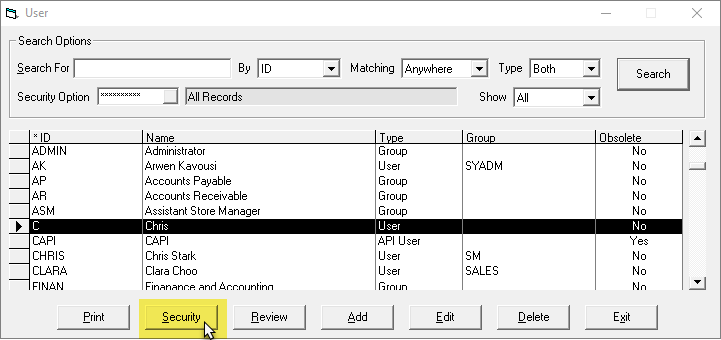
On the Tables tab, select User Security and then click Open.

-
Select a User or Group, and then click Security.
-
In the Keyword field, enter
invoice export.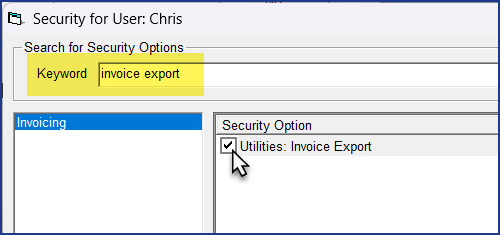
-
Select the Utilities: Invoice Export security option.
-
Click OK, and then Exit the User Security window.
Preparing the Excel File
Create an Excel file and list each invoice number that you want to export in a single column. When finished, save and close the Excel file.

Running the Utility
-
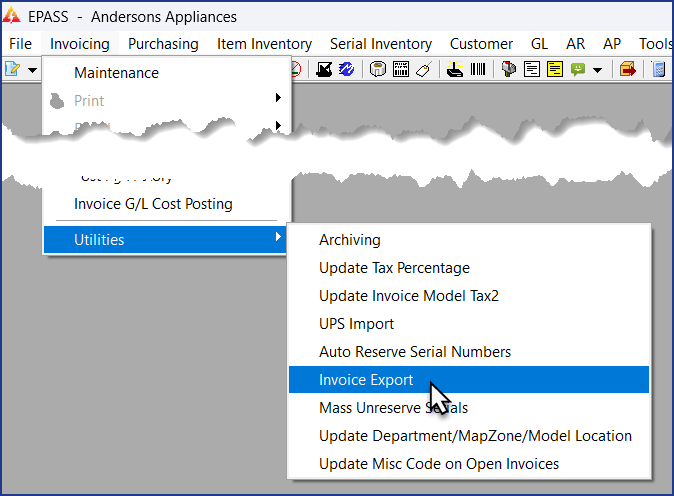
Go to Invoicing > Utilities > Invoice Export Utility.
-
Do the following:
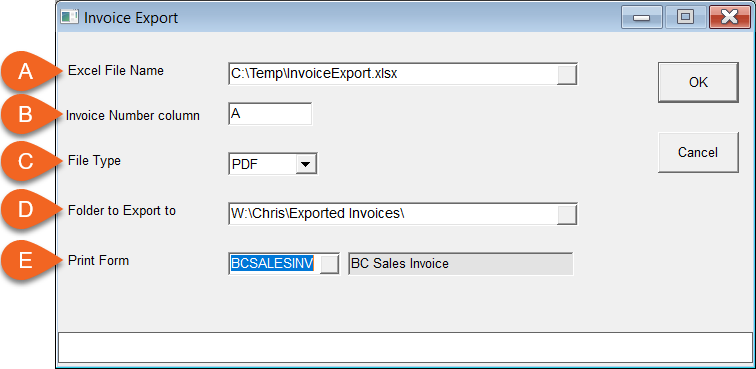
A Enter the location of the Excel file. B Enter the column letter that contains the invoice numbers. C Select the export file type: PDF or RTF. D Enter the destination folder for the exported files. E Select a print form. (Available print forms on the terminal are listed.) -
Click OK. The utility runs and exports the invoices to the destination folder.
- Invalid or missing invoice numbers are skipped.
- Make sure that the destination folder has write permissions.
- EPASS Users without the required security are not able to run the utility.