PO-14 On Order
The PO-14 On-Order report sounds like just an open PO report, but you might not be aware of the various ways it can be used. In addition to showing you POs that are on order, it can also show you orders that you haven’t been invoiced for yet (or were invoiced but the PO wasn't costed), or it can you show returns that you haven’t received credit for yet.
EPASS Users need the PO-14 security option to access and run the report.
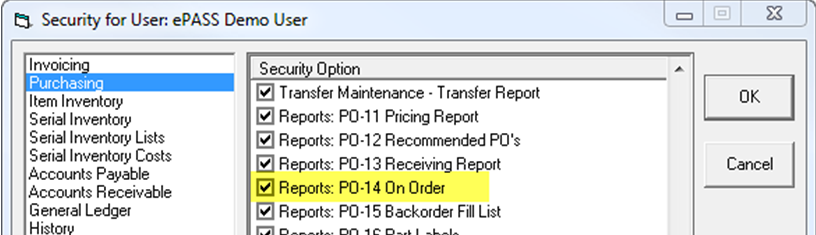
To Run the Report
- Go to Purchasing > Reports > PO-14 On Order.
- Enter the report parameters.
- When finished, click OK to run the report.
How to Use this Report
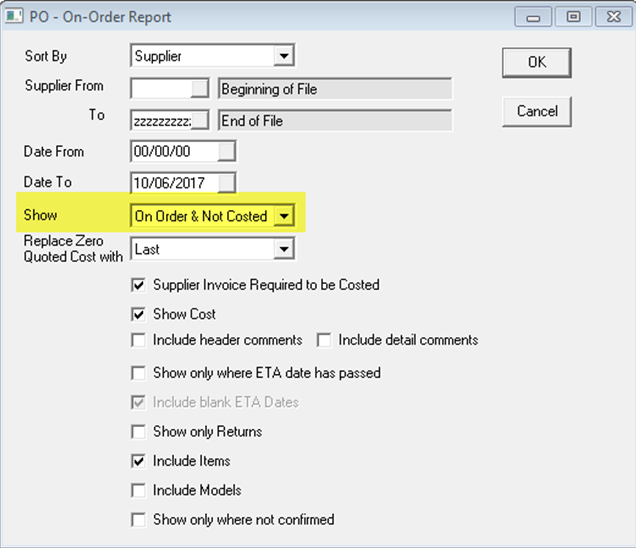
One of the key parameters that controls which information will appear on the report is the Show dropdown. The options are On Order Only, Not Costed Only, and On Order and Not Costed.
On Order Only
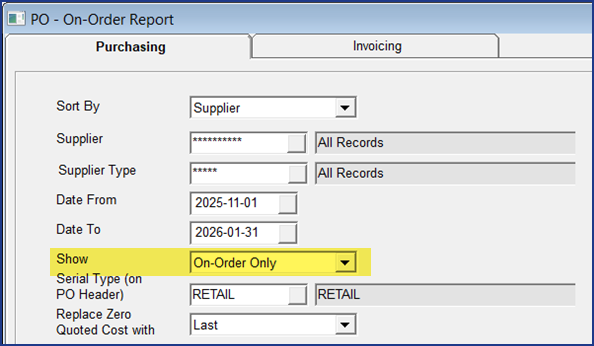
Without using any of the other options, On Order Only would just show you everything currently on order. Since showing everything might result in too much data, you can narrow the report down by using the date range, or you could use the following options to look at a more specific set of data.
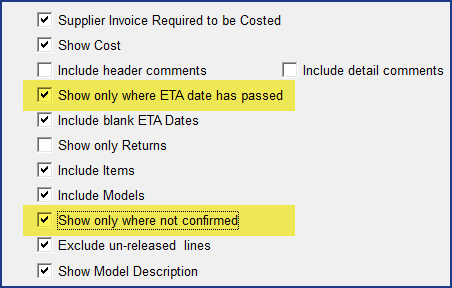
| Show only where ETA date has passed | This works together with On-Order Only but only shows POs where the ETA date has passed, so you can focus on product that is late. When this option is selected, you can also choose to Include blank ETA Dates. |
| Show only where not confirmed | On the PO Header there is a Confirmed field. You can use this to enter when you received confirmation from the supplier that they actually received the PO. If you are maintaining the confirmed field, then you could use this check box to find only the POs where you did not receive confirmation. You may want to double check with the supplier if they did receive those orders. |
Here is a sample of items on order on the report.

Not Costed Only
Another way you can use this report is to show products that have not yet been costed. These products would have been received from the supplier but the invoice from the supplier wasn't yet received, or the costs were not entered into EPASS. To run the report for not costed inventory, select Not Costed Only as well as the following options.
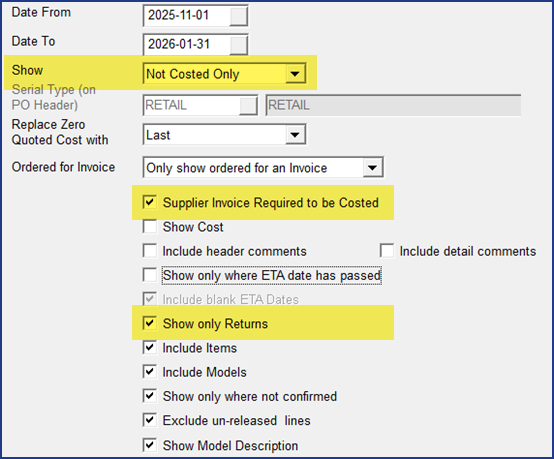
| Supplier Invoice Required to be Costed | This means an item on a PO is not considered “costed” until you have entered the supplier invoice number. This is how a company would normally operate; it’s important to track all supplier invoice numbers especially if you provide warranty service. |
| Show Only Returns | Just as important as making sure your POs are being costed is making sure that you have received credit for your parts returns, and that the credit invoice was entered on the return PO. You can track this by selecting Show only Returns. Now the report will show you everything you sent back to the supplier where you did not yet receive credit (or it was not keyed into EPASS). |
On Order and Not Costed
You can also run the report for On Order & Not Costed to show items that are still on order AND items that have been received but were not yet costed. Typically they are run separately but there are occasions where you may want to just look for any discrepancies whether it is an on-order issue or something was not costed.
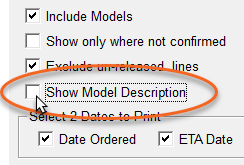
If the supplier's PO number is longer than 7 digits, it may get cut off in the PDF report. To fix this, you can clear the Show Model Description checkbox. This will remove the model description column from the PDF and give more room to the PO number column.
See Also
January 21, 2026