Importing a Supplier Price List
You can import a supplier price list (in an Excel spreadsheet format) into EPASS to update model or item data without manual entry. This enables you to add a large quantity of model or item information all at once, rather than entering them one-by-one.
Before Starting
You'll need:
- A Supplier Price List template (see Creating a Price List Template for instructions)
- An Excel spreadsheet from your supplier with model or item data.
These instructions cover importing model or item data from an Excel spreadsheet. For importing data from AVB or RetailDeck, see AVB Getting Started Guide or Configuring EPASS for RetailDeck.
To Import a Supplier Price List
-
Do one of the following:
-
To import a price list for MODELS, go to Serial Inventory > Supplier Price List.
-OR-
-
To import a price list for ITEMS, go to Item Inventory > Supplier Price List.
-
-
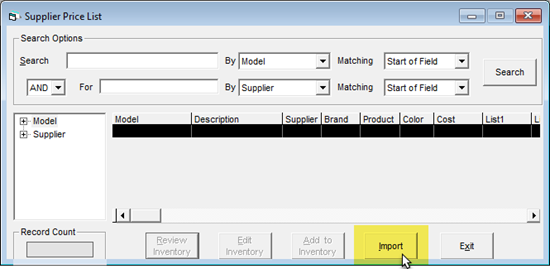
At the bottom of the Supplier Price List window, click Import.
-
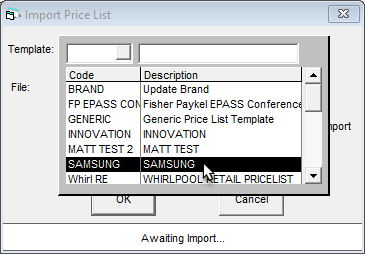
In the Template dropdown, select the Price List Template for the supplier.
-
In the File box, click the Browse button and select the supplier's price list (Excel spreadsheet).
-
Click OK. EPASS reads the import file and updates the model or item data.
-
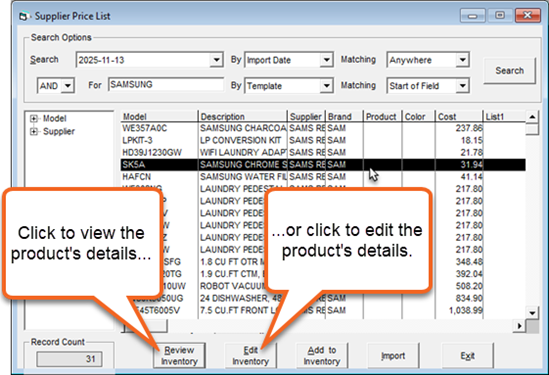
Once the import is finished, the Supplier Price List window is populated with all the products (models or items) that were imported. From here, you can select a product, and click Review Inventory to view the product's details or Edit Inventory if you need to make changes to them.
-
When finished reviewing or editing, click Exit.