Requiring Cost Selection
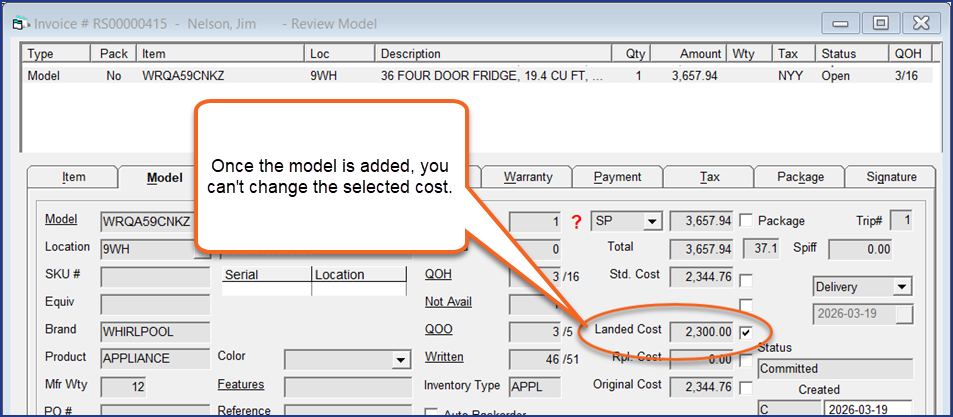
You can require staff to select a cost when adding a model to an invoice. If this requirement is active, EPASS prevents staff from adding a model until they select an avaialble cost (Standard, Average, Landed, Replacement, or Original). Once a cost is selected and the model is added, it can't be changed, even if the model line on the invoice is edited.
Because this option requires that costs are visible to staff, we recommend that you only use it with Invoice Types that are only used by staff that have the Invoicing > View Costs security option. Do not activate this feature on Invoice Types that are used by staff who are not authorized to view costs.
Workflow
A staff member adds a model to an invoice. The Invoice Type has the "require cost" option active, so EPASS prompts the staff member to select the model cost from the ones available.
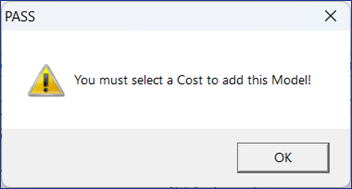
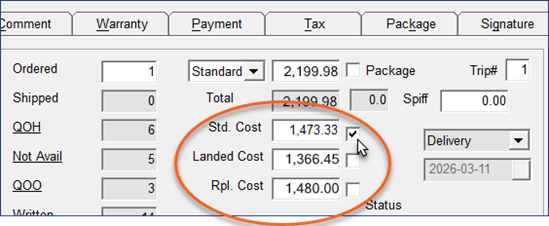
Once the cost selection is made, and the model is added to the invoice, the cost is "locked in" (it can't be changed.) Other staff members who view the invoice will see the cost that was selected when the model was added.
-
If Hide Costs is turned ON
 EPASS will prompt you to turn it off when you try to add a model to the invoice. You can toggle Hide Costs ON and OFF from the toolbar.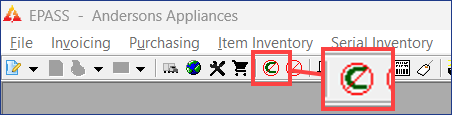
Setting Up
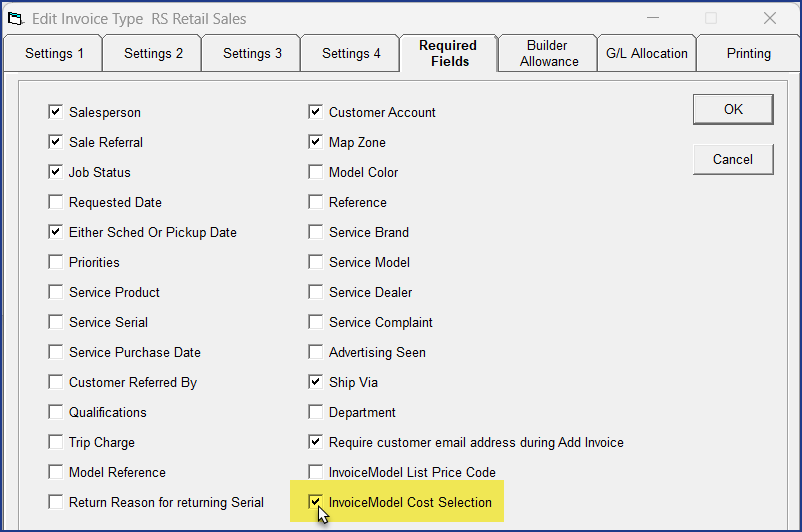
Requiring model cost selection is an option that's enabled on the Invoice Type. You will need to activate it for each Invoice Type where cost selection is required.
If an EPASS User doesn't have the Invoicing > View Costs security option, they won't be able to add a model to the invoice if this option is active for the Invoice Type.
Steps
-
Go to Tools > System Maintenance.
-
On the Tables tab, click Invoice Type, and then click Open.

-
Click an Invoice Type, and then click Edit.

-
Click the Required Fields tab.

-
Select InvoiceModel Cost Selection.
-
Click OK.
-
Repeat steps 2–5 for additional Invoice Types.