Wireless Inventory Activity
The Wireless Inventory Activity screen provides a complete audit trail of activity for serialized wireless inventory items. It allows users to track the movement and status changes of inventory by serial number, model, batch number, location, and transaction type.
Use this screen to investigate inventory history, monitor transfers between locations, review receiving and shipping activity, and identify inventory exceptions.
To Open the Wirekess Inventory Activity Screen
- Go to Serial Inventory > Wireless Inventory > Activity.
Understanding the Wireless Inventory Activity Screen
The Activity screen displays all recorded transactions for wireless inventory items that match the selected search criteria.
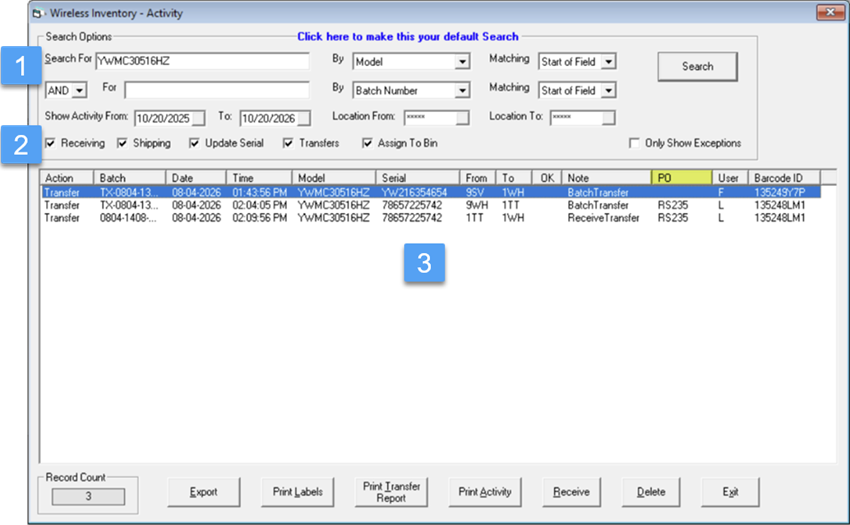
1️⃣ Search Options
Search for a specific serial number, model, batch number, or other inventory identifier.
Filter results by:
- Model
- Batch Number
- Location Range
- Matching Type
2️⃣ Activity Type Filters
- Receiving
- Shipping
- Update Serial
- Transfers
- Assign To Bin
- Only Show Exceptions
Select one or more activity types to limit the results displayed.
3️⃣ Activity Grid
The activity grid displays detailed transaction history.
| Column | Description |
|---|---|
| Action | Type of inventory activity performed |
| Batch | Batch number associated with the transaction |
| Date | Transaction date |
| Time | Transaction time |
| Model | Inventory model number |
| Serial | Serial number affected |
| From | Source location |
| To | Destination location |
| OK | Transaction status or process type |
| Note | Additional transaction information |
| PO | Purchase order number |
| User | User who performed the transaction |
| Barcode ID | Associated barcode identifier |
Tracking Inventory Transfers
One of the most common uses of the Activity screen is to track inventory transfers.
For transfer transactions, the screen displays:
- The originating location in the From column.
- The destination location in the To column.
- The transfer batch number.
- The user who completed the transfer.
- The date and time the transfer occurred.
This information provides a complete history of inventory movement between warehouse locations, stores, vehicles, bins, or other inventory locations.
Identifying Receiving Activity
When inventory is received into stock, the activity log records:
- Receiving transaction details
- Batch information
- Purchase order reference
- Inventory serial number
- Receiving location
- User who completed the receipt
Use this information to verify when inventory was received and identify the source transaction.
Reviewing Shipping Activity
Shipping transactions can be reviewed to determine:
- When an item left inventory
- Which serialized unit was shipped
- Who processed the shipment
- Associated batch and reference information
This provides traceability throughout the inventory lifecycle.
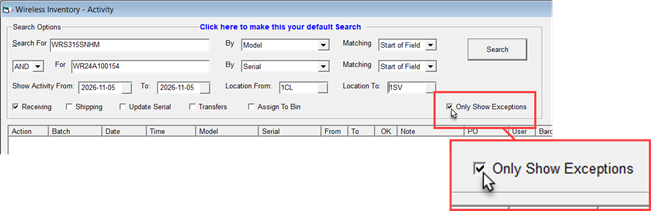
Viewing Exception Records
To display only unusual or exception transactions:
-
Enter your search criteria in Search Options.
-
Select Only Show Exceptions.
-
Click Search.
The results will be filtered to show exception-related inventory activities, helping users identify issues that may require review or corrective action.
Example: Reviewing a Serial Number History
To determine where a serialized item has been moved:
-
Search by the serial number.

-
Include Transfers in the activity filters.

-
Review the Location From and Location To.

-
Click Search.
The activity grid provides a complete movement record for the selected serialized item.
Search by batch number to trace related inventory transactions.
- Activity records provide an audit trail of inventory movement and processing.
- Multiple activity types can be selected simultaneously.
- Location filters can be used to narrow results to specific facilities or inventory locations.
- Serial numbers, batch numbers, and barcode IDs can be used to investigate inventory history.
- Access to certain functions may be controlled by user security settings.