Setting a Model or Serial to "Do Not Service"
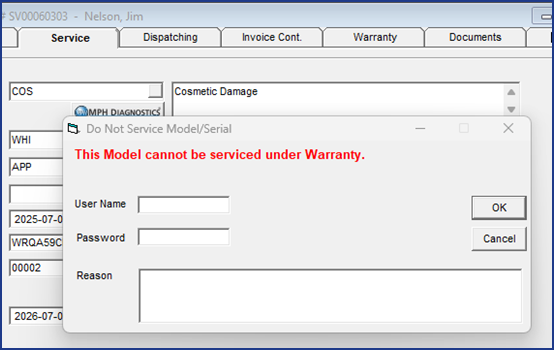
Some manufacturers prefer to replace models rather than repair them under their 1-year manufacturer's warranty. In EPASS, you can designate models and individual serial numbers as "Do Not Service." If a "Do Not Service" model or serial is added to a service invoice, the EPASS User is immediately notified that the model should be replaced, rather than repaired.
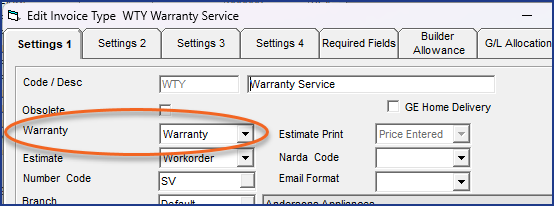
For the warning to trigger, the invoice must use an Invoice Type which has its Warranty setting set to Warranty.
Before Starting
Enabling Security Overrides
You can give authorization to specific EPASS Users or Groups to override the "Do Not Service" warning.
-
Go to Tools > System Maintenance. On the Tables tab, click User Security, and then click Open.

-
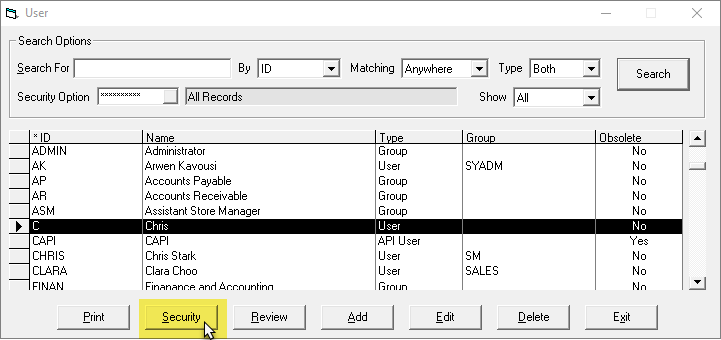
Select a User or Group, and then click Security.
-
In the Keyword field, enter
Service. Click Overrides, and then select the INV: Allow Servicing Do Not Service Model/Serial.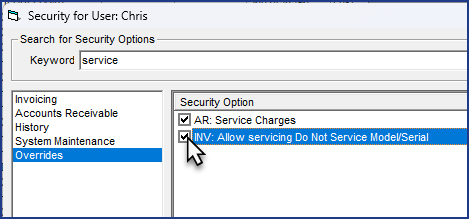
-
Click OK.
Setting a Model to "Do Not Service"
-
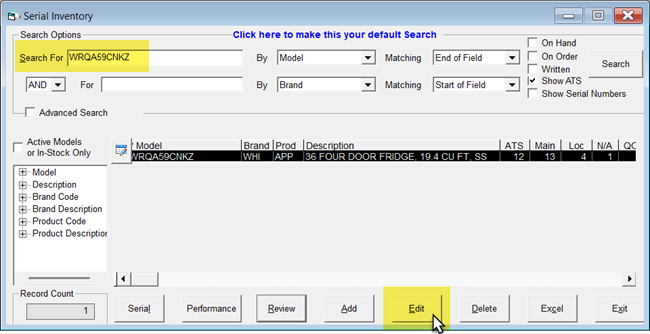
Go to Serial Inventory > Maintenance, and then search for the model.
-
Select the model, and then click Edit.
-
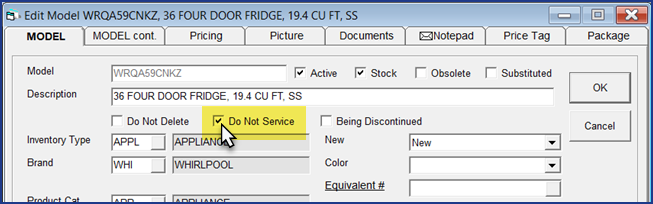
On the Model tab, select Do Not Service.
-
Click OK to close the Edit Model window.
Setting a Serial to "Do Not Service"
-
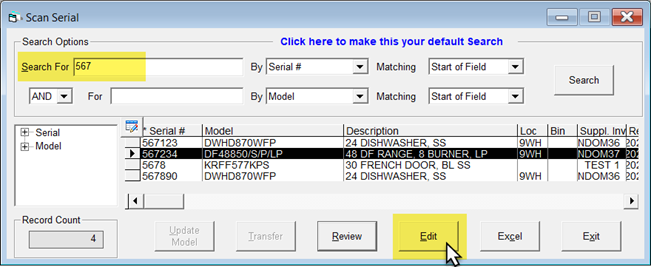
Go to Serial Inventory > Scan Serial, and then search for the serial number.
-
Select the serial, and then click Edit.
-
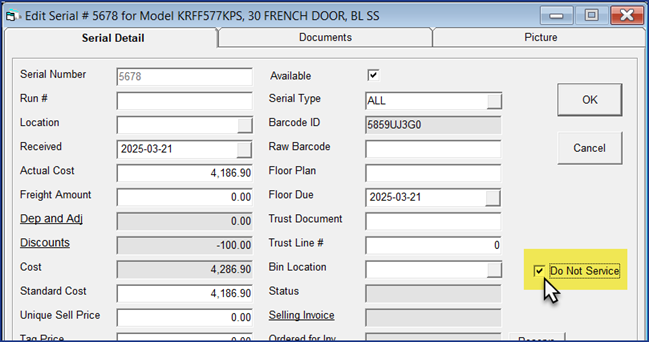
On the Serial Detail tab, select Do Not Service.
-
Click OK to close the Edit Serial window.
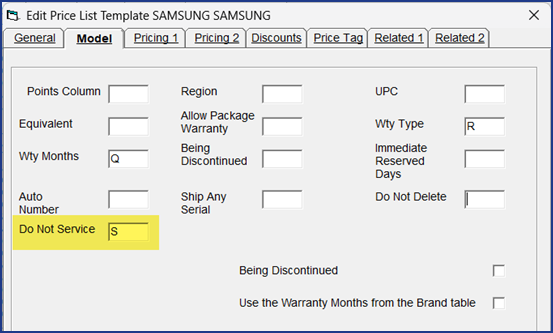
Models can be set to "Do Not Service" when importing a supplier Price list. On the Model tab of the Edit Price List Template window, you can map the Excel sheet's "Do Not Service" column.