Receiving Serials or Items
Receiving Serial Inventory
-
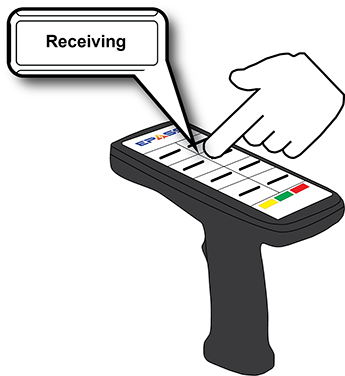
Touch Receiving.
-
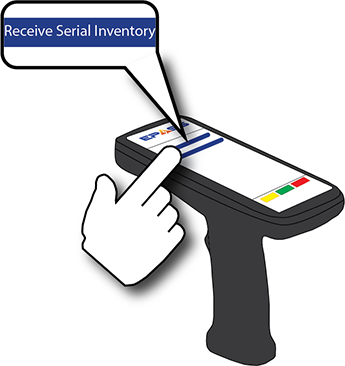
Touch Receive Serial Inventory.
Tip
To change the location of where the serial inventory is being received, touch Change Location, then scan or enter the location number. -
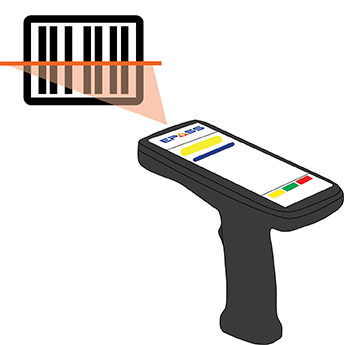
Scan the serial inventory label that was printed from EPASS.
-
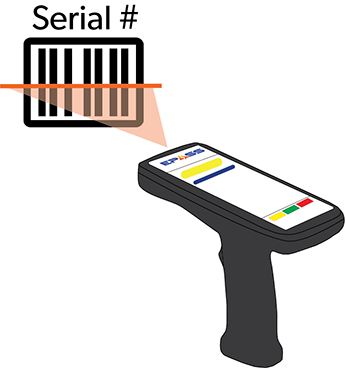
Scan or enter the product serial number.
Receiving Items
-
Touch Receiving.
-
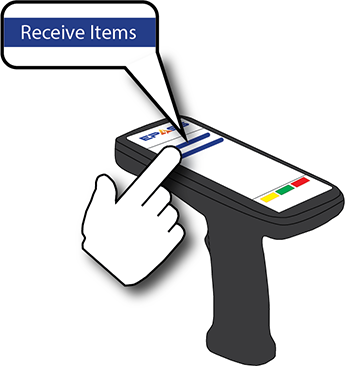
Touch Receive Items.
-
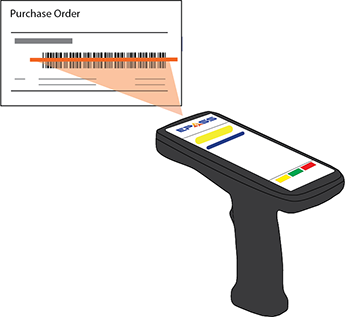
Scan or enter the PO#.
-
If you have additional POs, scan or enter their numbers to add them to the receive.
-
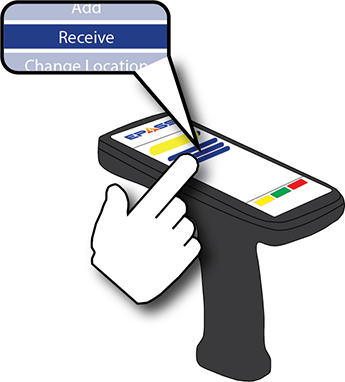
Once you’ve added all POs, touch Receive.
-
Select the Print Label option.

Notes
-
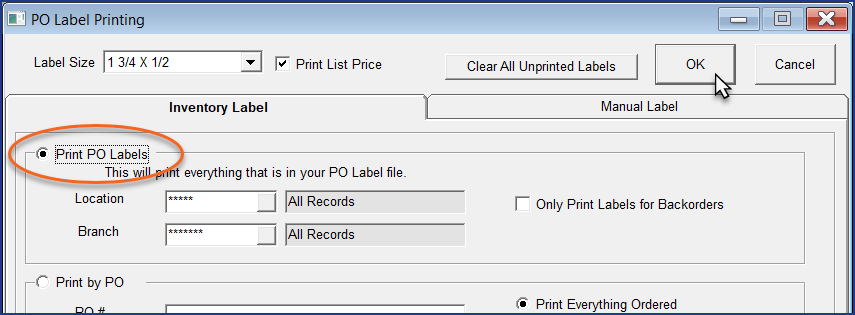
Selecting Yes adds a label file to the PO Label Printing queue in EPASS. Once the items are received, you can print the item labels by doing the following:
-
Log into EPASS.
-
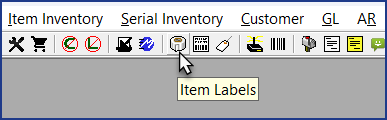
On the toolbar, click the Item Labels button.
-
Make sure that Print PO Labels is selected, and then click OK to print the label file.
-
-
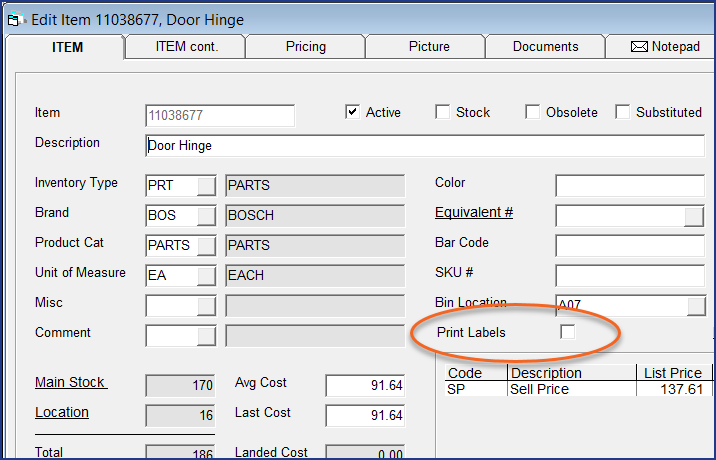
Selecting Default creates label files only for received items that have the Print Labels option enabled in EPASS.
-
The scanner devices do not have the capacity to print. Printing can only be done through an EPASS terminal with a connected printer.
-
-
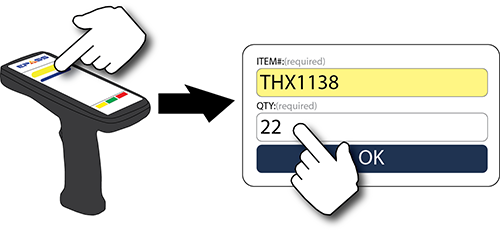
Scan or enter the item number.
-
Enter the quantity received.
-
Touch OK.
-
If there are additional items on the PO to receive, repeat steps 5–8, or touch Home to exit.
Feedback
Was this page helpful?
Thank you! Have additional feedback? We would love to hear from you!
Sorry to hear that. Please tell us how we can improve.