Auto Reserve Utility
Overview
The purpose of the Auto Reserve utility is to allocate serials on hand and reserve models to open purchase orders. Before running the OE-04 Written Models and SN-15 Ordering reports, it is important to first reserve what is currently in inventory and allocate models to on-order POs.
This guide is intended to help you understand how the utility selects serials to reserve based on selected options and parameters.
In this guide:
- Starting the Auto Reserve Utility
- How Does the Utility Know Which Invoice Model to Select?
- How Does the Utility Know Which Open Purchase Orders to Select and Which Serial Numbers to Reserve? (jump to section
Starting the Auto Reserve Utility
- Go to Invoicing > Utilities, and then click Auto Reserve Serial Numbers.
How does the utility know which invoice model to select?
The utility selects models based on the selection in the Invoice Model Selection dropdown.
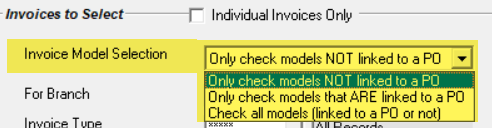
There are 3 options to choose from:
- Only check models NOT linked to a PO
- Only check models that ARE linked to a PO
- Check all models (linked to a PO or not)
Selection Criteria
The following criteria must be met in order for the invoices to be selected by the utility:
- Invoice Status is Open or Committed.
- Invoice is not an Estimate.
- Models have not been reserved.
- Models are not exclusive reserve.
- The quantity on the models is greater than 0.
- Models have not been fully shipped.
- Invoice Type allows reserving.
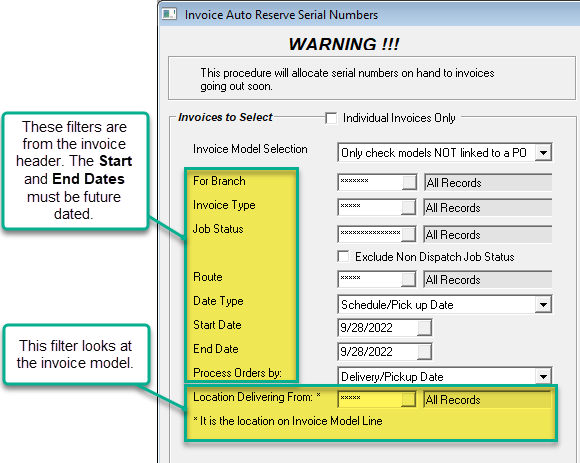
- The current date, less the Schedule or Pickup Date, meets the limit on reserving serials in advance for the Invoice Type.
- For example, if the Schedule or Pickup Date = Mar 31/22 and the current date is Mar 18/22 then the difference is 13 days. The 13 days is compared to the max number of days to reserve on the Invoice Type.
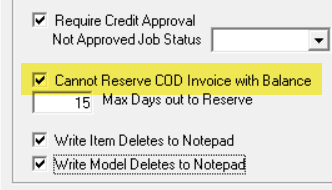
- If Payment Type is COD and the Invoice Type Settings 3 “Cannot Reserve COD Invoice with Balance” checkbox is selected, then check that the invoice does not have an outstanding balance.
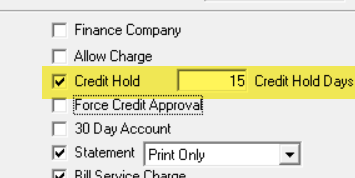
- If Payment Type is COD, check that Customer Credit Hold is not selected.
Parameters
How does the utility know which open purchase orders to select and which serial numbers to reserve?
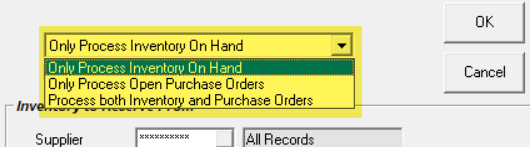
There are 3 options to choose from:
- Only Process Inventory on Hand
- Only Process Open Purchase Orders (jump to section)
- Process both Inventory and Open Purchase Orders (jump to section)
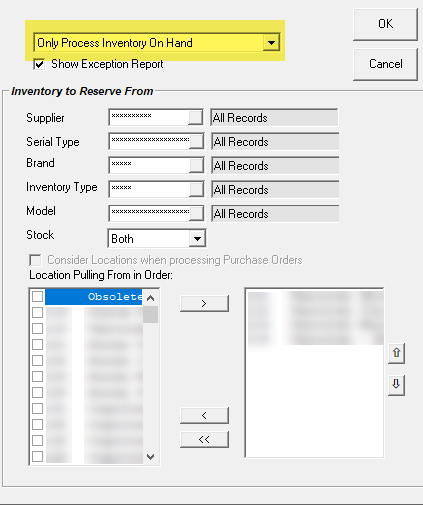
Only Process Inventory on Hand
When this option is selected, the following rules apply:
- The serial is available
- The serial is not linked to an invoice
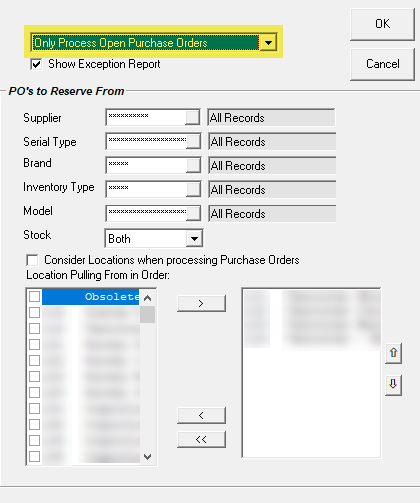
Only Process Open Purchase Orders
When this option is selected, the following rules apply:
- The PO is not linked to an invoice.
- The PO is not an exclusive order.
- The PO is released.
- The PO allows back order invoices to be linked.
- The ETA Date has to be less than Invoice Schedule / Pickup Date.
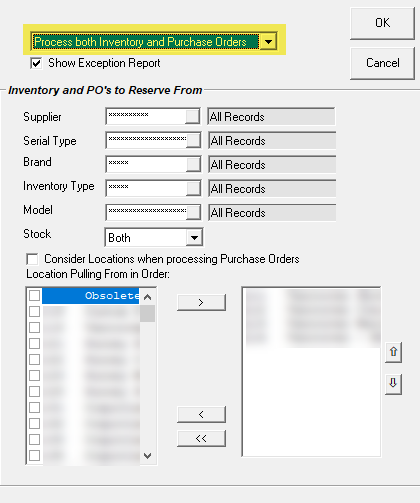
Process Both Inventory and Purchase Orders
When this option is selected, the following rules apply:
- The utility will first check inventory on hand:
- The serial is available.
- The serial is not linked to an invoice.
- Then it will check the open purchase orders:
- The PO is not linked to an invoice.
- The PO is not an exclusive order.
- The PO is released.
- The PO allows back order invoices to be linked.
- The ETA Date has to be less than Invoice Schedule/Pickup Date.
See Also
- Mass Unreserve Utility
- Limiting How Far Out You Can Reserve Serial Inventory
- Exclusive Reserve/Unique Selling Price
- OE-04 Written Models
- SN-15 Ordering
September 28, 2022